
How to set up the planner, enter employee wishes, have a shift roster built for a month or a longer period, write it into attendance, send it to employees as a PDF, plan on-call duties, and how the planner enforces the Czech Labour Code, including the employee’s consent to a schedule change.
Contents
- How planning works
- What needs to be set up
- Planning rules
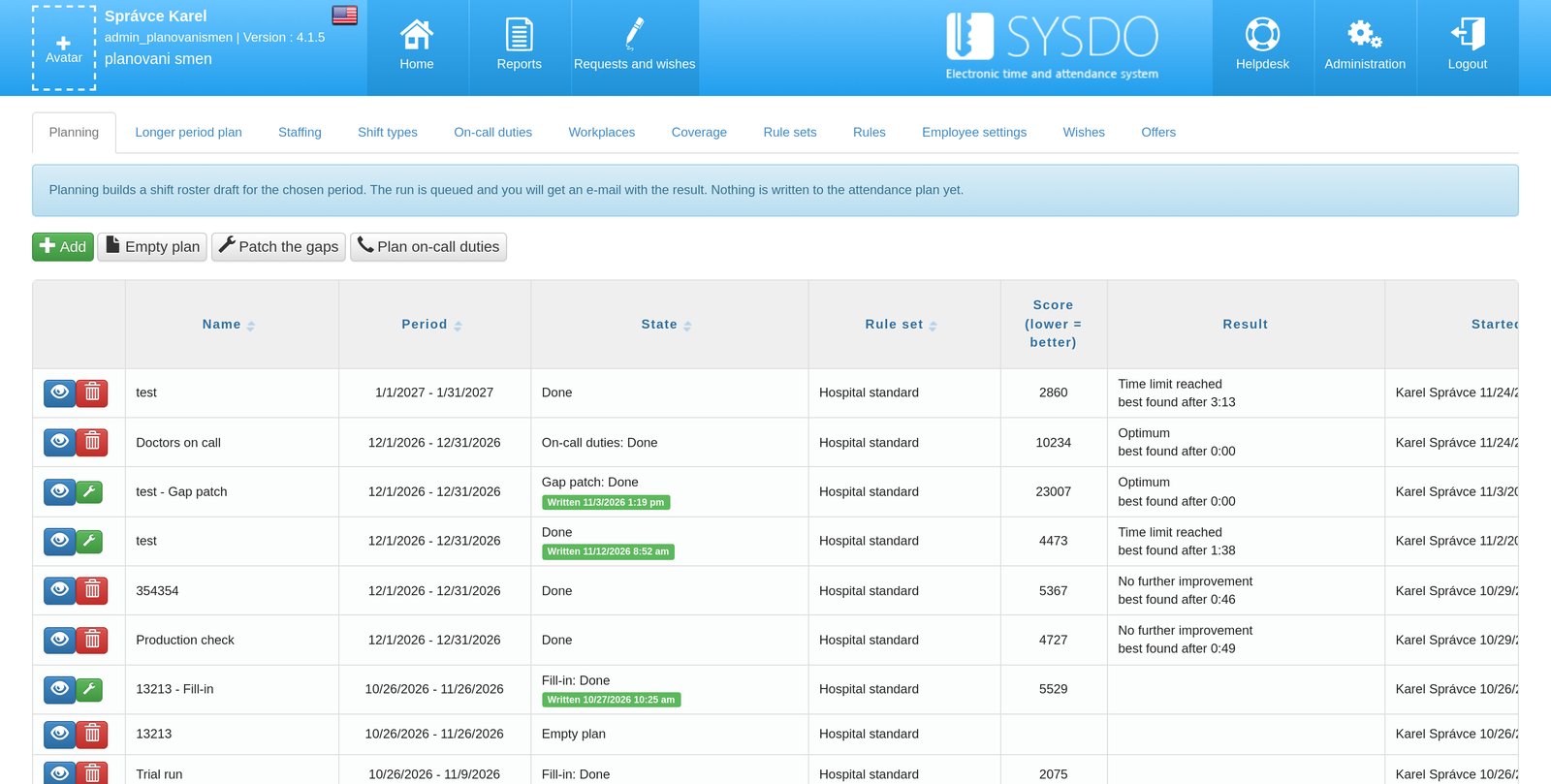
- Employee wishes
- Planning a month
- Draft: review and manual edits
- Writing into attendance and cancelling
- Sending the plan as PDF
- Changes on the fly: Fill the rest, Patch the gaps, Empty plan
- Plan for a longer period
- Employee consent to a change (Section 84 of the Labour Code)
- Staffing: who is at the workplace and when
- On-call duties
- Rules and the Czech Labour Code
- Tips and FAQ
1. How planning works
The planner builds a draft shift roster for a selected workplace and period. It is based on four things:
- how many people are needed and when (workplace coverage),
- who may do what (employee settings: working-time ratio, allowed shifts, limits),
- rules (rest, working-time fund, nights, weekends…),
- employee wishes (want / do not want a shift, day off).
The calculation runs on a separate computing server (the solver). It looks for a roster that meets all hard rules and breaks the soft rules as little as possible. Draft quality is shown by the score: the sum of “penalties” for broken soft rules and uncovered positions. The lower the score, the better the roster.
Plan life cycle
- Setup (once): shift types, workplaces, coverage, rule set, employee settings.
- Wishes: employees or managers enter wishes before the deadline.
- Planning run: it is queued and computed in the background. You get an e-mail with the result.
- Draft: the manager reviews it, edits it manually if needed and saves it as a variant.
- Apply: the draft is written into the attendance plan. Until then nothing changes in attendance.
- Send plan: employees get an e-mail with a PDF of their own plan or of the workplace roster.
- Changes on the fly: a missing person is handled by Patch the gaps. Last-minute changes go to the employee for approval.
- Staffing: how many people are at the workplace in each hour, adding a person with one click (chapter 12).
2. What needs to be set up
Setup is done once and then only maintained (new person, change of working-time ratio, new workplace). Recommended order:
2.1 Shift types
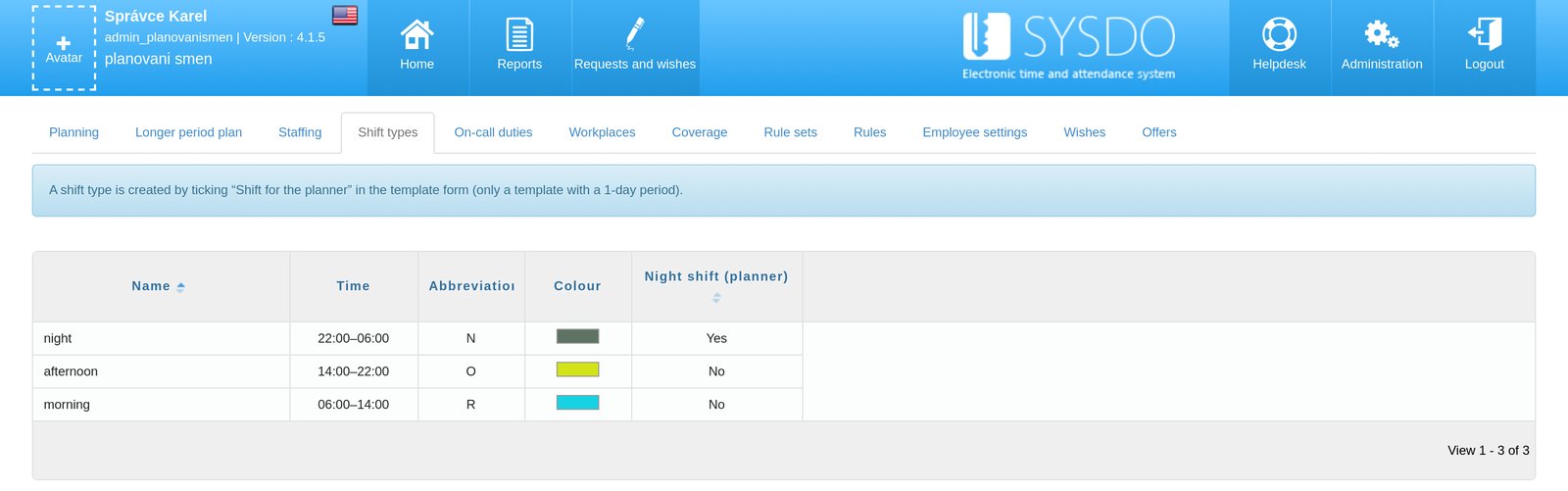
A shift type is not created in the planner but from an attendance plan template. In the template form, tick Shift for the planner. This is possible only for a template with a 1-day period. The template then gets a code in the planner (R, O, N…), a colour, start, end and worked time. Night shifts are recognised by their time.
2.2 Workplaces
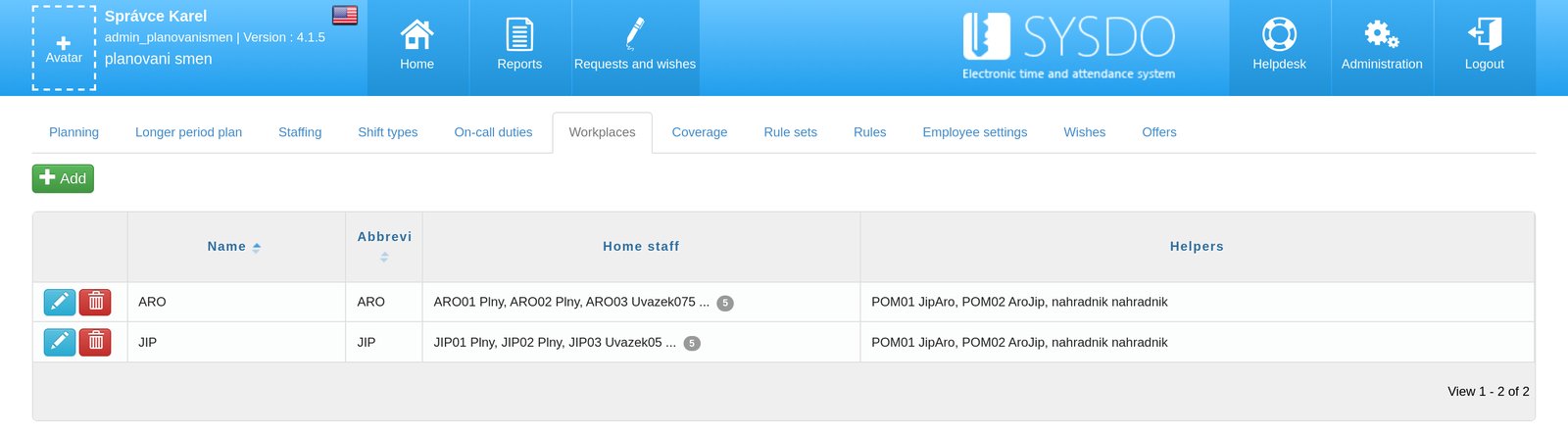
A workplace is a place people are planned to (ICU, anaesthesiology, internal medicine, outpatient clinic…). It does not have to match the Work groups in attendance. Enter a name and an abbreviation. The abbreviation is shown in the draft, in the PDF and in change offers (“R 06:00–14:00 (JIP)”).
2.3 Coverage
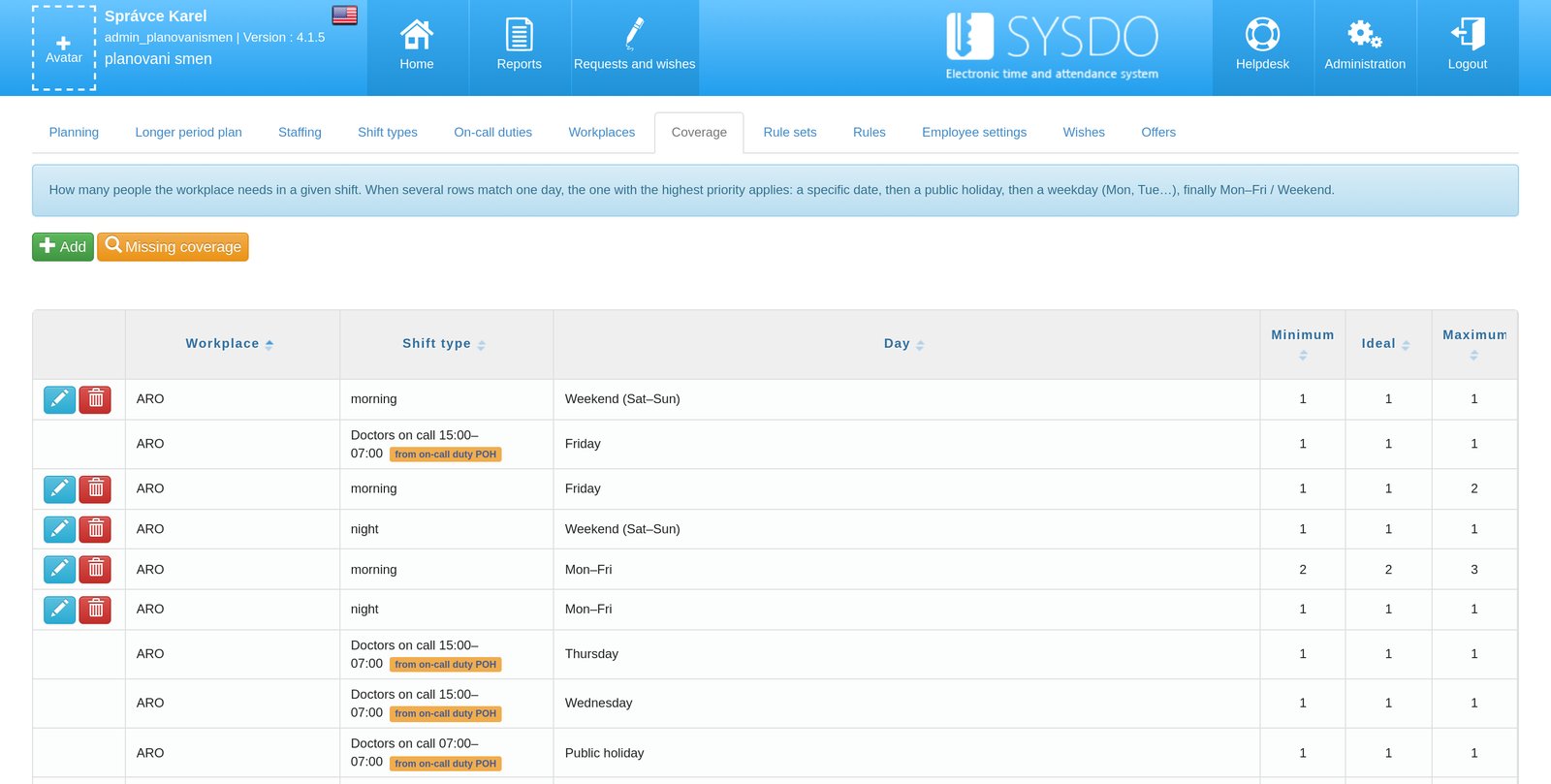
Coverage says how many people are needed at the workplace in a given shift: minimum, ideal and maximum. It is entered per day type: Mon–Fri, weekend, a specific weekday, public holiday or a specific date. When several rows match one day, the one with the highest priority applies:
specific date → public holiday → weekday → Mon–Fri / Weekend
The page reports missing combinations. The planner plans nobody for them. Where nobody should be, enter 0 / 0 / 0.
2.4 Rule set
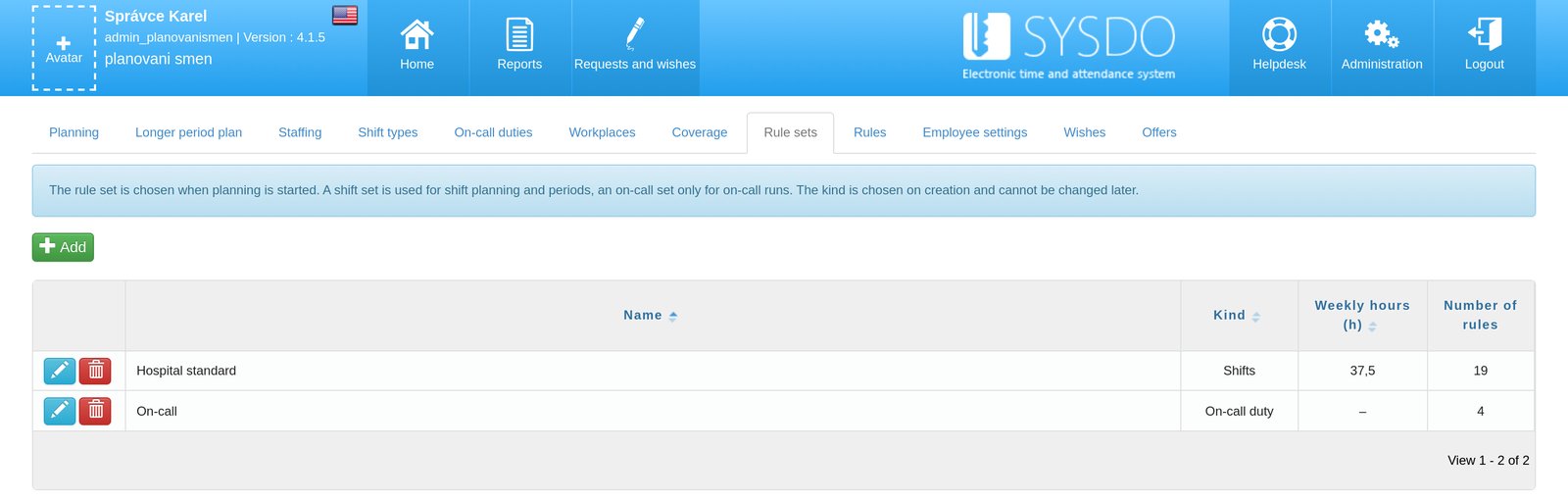
The rule set is selected when planning is started. It contains:
- Weekly hours (h) for a full-time employee, e.g. 40 or 37.5;
- Consent to a shift change: Require employee consent, Consent period (days), Time to answer (h). See chapter 11;
- a list of rules (chapter 3).
There can be several sets, for example “Hospital standard” and “Summer – fewer people”.
Each set has a Kind: Shifts (regular planning and periods) or On-call duty (chapter 13). The kind is chosen when the set is created and cannot be changed later.
2.5 Employee settings
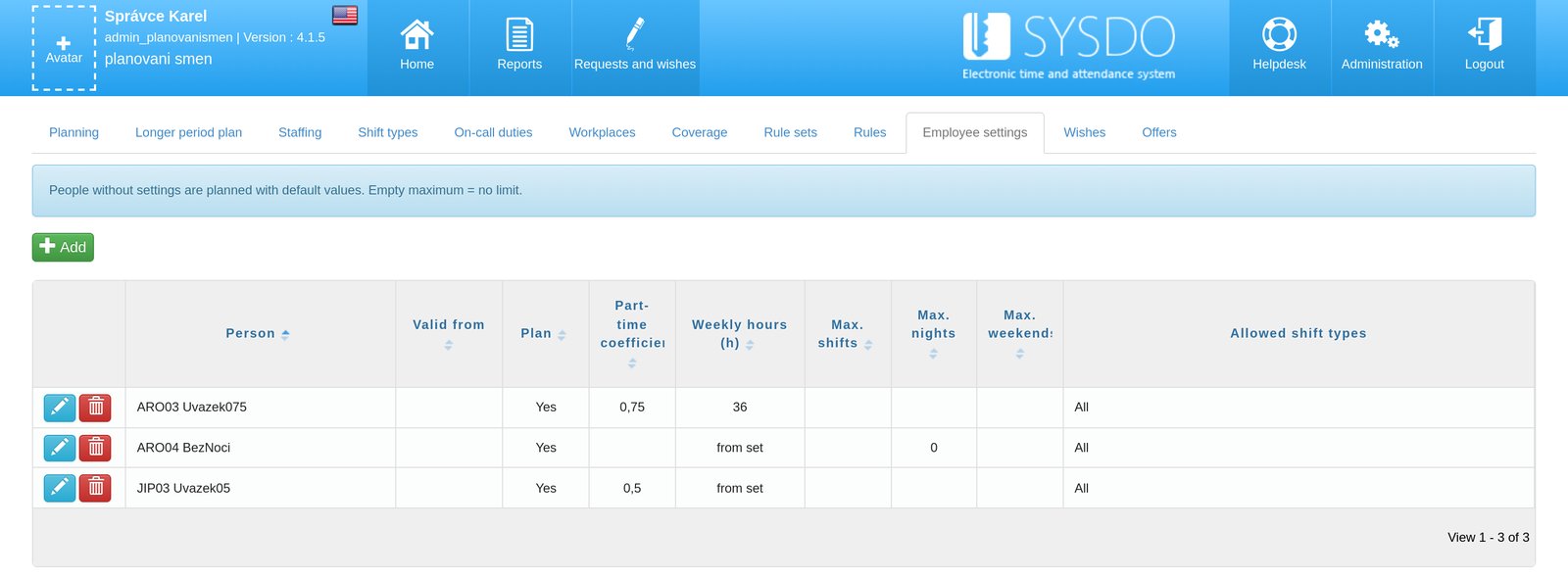
Anyone without their own settings is planned with default values. Create settings only for people who differ.
| Field | Meaning |
|---|---|
| Plan | Whether the planner includes the person at all. |
| Part-time coefficient | 1 = full time, 0.5 = half time. Fund = weekly fund × ratio. |
| Weekly hours (h) | Own full-time fund. Empty = taken from the rule set. |
| Max. shifts / Max. nights / Max. weekends | Personal limits for the period. Empty = no limit. |
| Allowed shift types | Which shifts the person may work (e.g. mornings only). |
| Workplaces | Where the person may be planned. |
| Valid from | Settings are versioned. A change can be prepared in advance, e.g. a different working-time ratio from the 1st of next month. |
2.6 Where the planner takes other data from
- Absences from attendance (holiday, sickness…): the person gets no shift that day. A partial absence counts as a whole day.
- Public holidays from the company calendar: a holiday reduces the fund (except for people who work on the holiday) and has its own coverage.
- The written plan before the period: the planner continues from the last days. Rest and shift series are checked across the period boundary too.
- Start and end of employment: the fund is counted only for days when the person is employed.
3. Planning rules
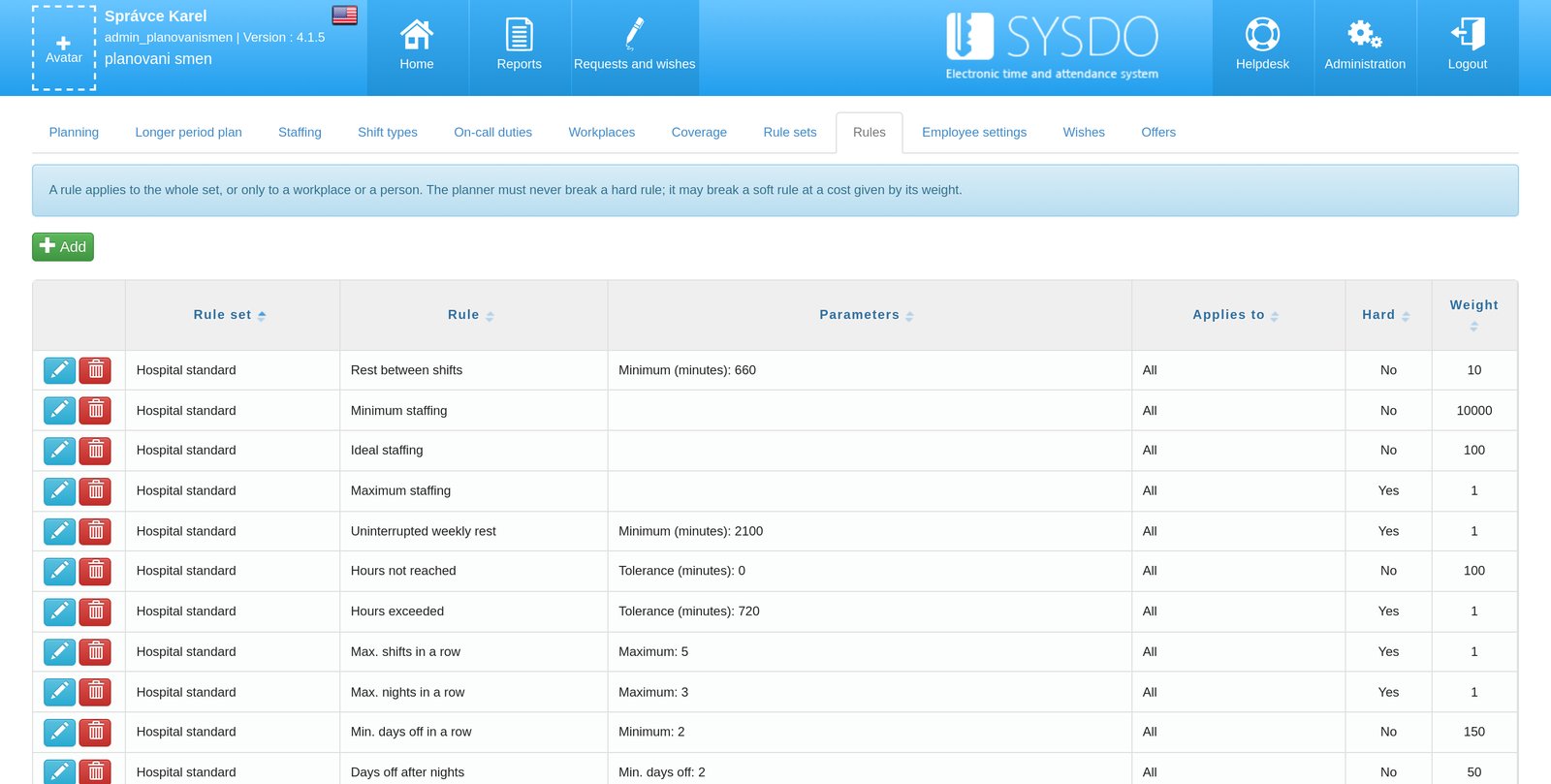
A rule applies to the whole set, or only to one workplace or one person. Every rule is:
- hard: the planner must not break it. If it cannot be met, no plan is created and you get the e-mail “the roster cannot be built”;
- soft: the planner may break it, but each violation costs its weight (a penalty added to the score). A higher weight means the rule matters more.
Rule overview
| Rule | What it checks |
|---|---|
| Minimum / Ideal / Maximum staffing | Meeting the coverage from chapter 2.3. The minimum is usually soft with a very high weight, the ideal soft, the maximum hard. |
| Rest between shifts | Minimum break between the end of one shift and the start of the next (e.g. 660 min = 11 h). |
| Uninterrupted weekly rest | Continuous time off once a week (e.g. 2100 min = 35 h). |
| Max. worked in a rolling window | Cap on hours in any stretch of a given number of days. |
| Fund not used up | Penalty when a person has fewer hours than their fund (with tolerance). |
| Fund exceeded | Cap above the fund (e.g. tolerance 720 min = 12 h of overtime). |
| Max. consecutive shifts | The longest series of working days. |
| Max. consecutive nights / per period | Limits on night shifts. |
| Max. shifts of a given type | Cap for a specific shift type. |
| Min. consecutive shifts | Prevents scattered single-day shifts. |
| Min. consecutive days off | Time off should be e.g. at least 2 days in a row. |
| Time off after nights | At least X days off after a series of nights. |
| Fair distribution of nights / weekends | Nights and weekends spread evenly among people. |
| Free weekends | Everyone should have at least X free weekends in the period. |
| People’s wishes | How much the planner accommodates wishes (chapter 4). |
| Forbidden shift sequences | E.g. Night → Morning on the very next day. |
| Stability against the original plan | When re-planning, change as little as possible of what people already have. |
Sample set “Hospital standard” (37.5 h per week)
| Rule | Value | Type | Weight |
|---|---|---|---|
| Rest between shifts | 660 min (11 h) | soft | 10 |
| Uninterrupted weekly rest | 2100 min (35 h) | hard | – |
| Minimum staffing | per coverage | soft | 10,000 |
| Ideal staffing | per coverage | soft | 100 |
| Maximum staffing | per coverage | hard | – |
| Fund not used up | tolerance 0 | soft | 100 |
| Fund exceeded | tolerance 720 min | hard | – |
| Max. consecutive shifts | 5 | hard | – |
| Max. consecutive nights | 3 | hard | – |
| Min. consecutive days off | 2 | soft | 150 |
| Time off after nights | 2 days | soft | 50 |
| Fair nights / weekends | – | soft | 20 |
| Free weekends | min. 1 | soft | 30 |
| People’s wishes | – | soft | 5 |
The values are an example. Compare weights with each other: minimum staffing with weight 10,000 is far more important than a wish with weight 5. The planner would rather not grant a wish than leave a position uncovered.
4. Employee wishes
Wishes are input for the planner, they are not binding. The planner takes them into account according to the weight of the “People’s wishes” rule and the weight of each individual wish.
| Kind | Meaning |
|---|---|
| Want a shift | I want to work that day. A specific shift type can be chosen, or “Any”. |
| Don’t want a shift | I don’t want the given shift (or any shift) that day. |
| Day off | No shift that day. |
Who enters wishes
- Manager / administrator on the Wishes tab. Wishes may be edited by an administrator who has the right to change attendance of the employee the wish is entered for. No higher rights (planner administration) are needed.
- The employee on the My wishes page (web, mobile app), if allowed.
Rules for employees
In the setting Shift planning – employee wishes (on the company, Work group or employee) you define:
- Employee may enter wishes (yes / no);
- limits per month or week: max. wishes in total, of which max. days off, of which max. on Saturday / Sunday;
- wish deadline: how many days before the start of the period wishes are closed.
On the My wishes page the employee sees a counter, e.g. “wishes 3/6, days off 1/2, weekend 0/1, deadline 20 Nov”. When a run is created, the planner warns if employee wishes may still change (the deadline has not passed).
5. Planning a month
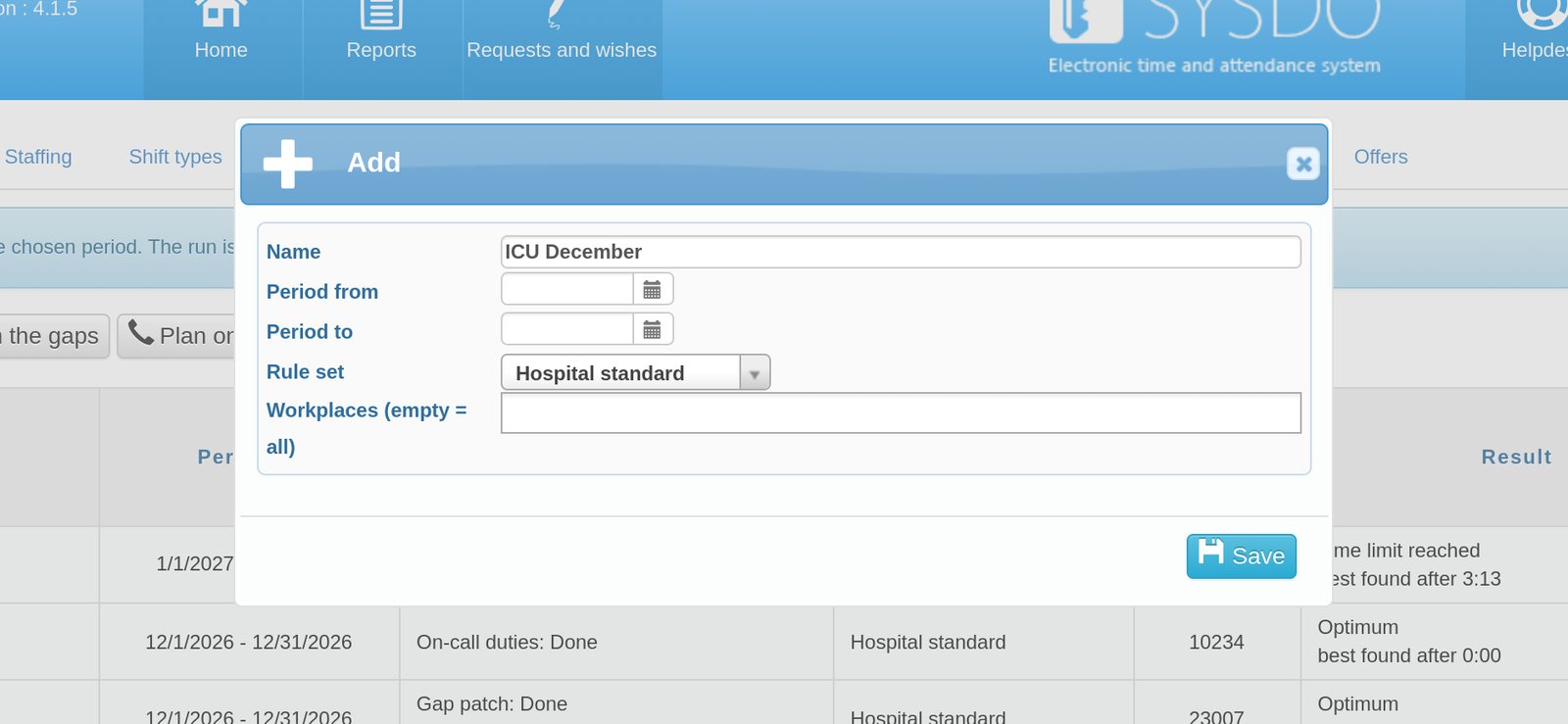
On the Planning page, create a run with the Add button:
- Name (e.g. “ICU December”),
- Period from – to: 1 to 62 days, starting today at the earliest,
- Sada pravidel (Rule set),
- Workplaces (empty = all).
The run is put into a queue. A company can have only one run queued or running at a time. Progress is shown in the list: status, elapsed time, estimated finish and the current score. Depending on the size of the unit, the calculation takes a few minutes. The solver keeps computing while the roster improves, up to a set limit at most.
- Stop and use the best: stops the calculation and takes the best roster found so far.
- Cancel: cancels a queued run.
When finished, you get the e-mail “Shift planning finished” with a link to the draft. If the mandatory rules and coverage cannot be met at the same time, you get the e-mail “Shift planning – the roster cannot be built”. Then you need to relax rules, lower minimums or add people.
6. Draft: review and manual edits
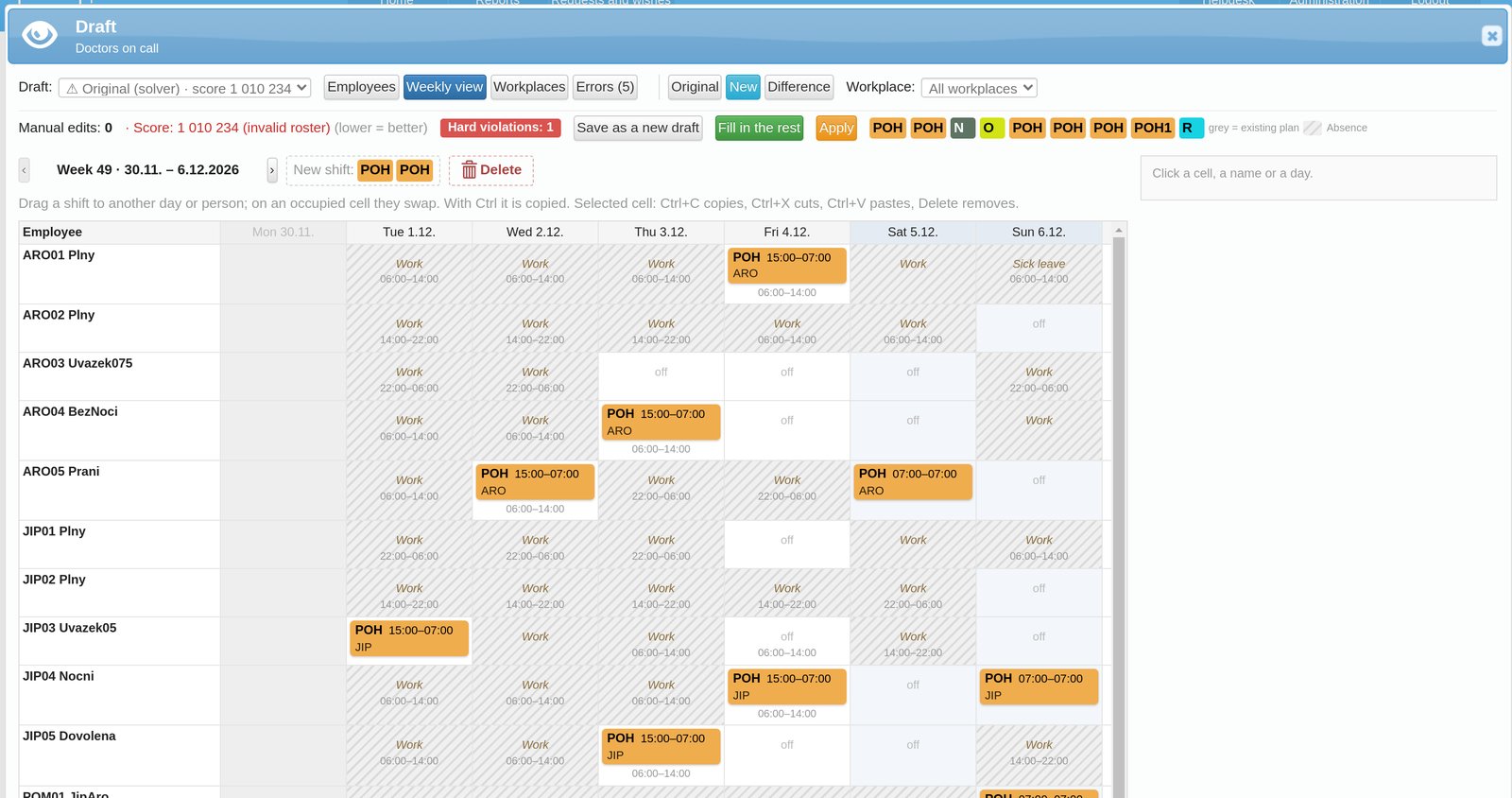
The draft is opened with the button next to the run. At the top there is the draft variant selector, the score and view switches.
Views
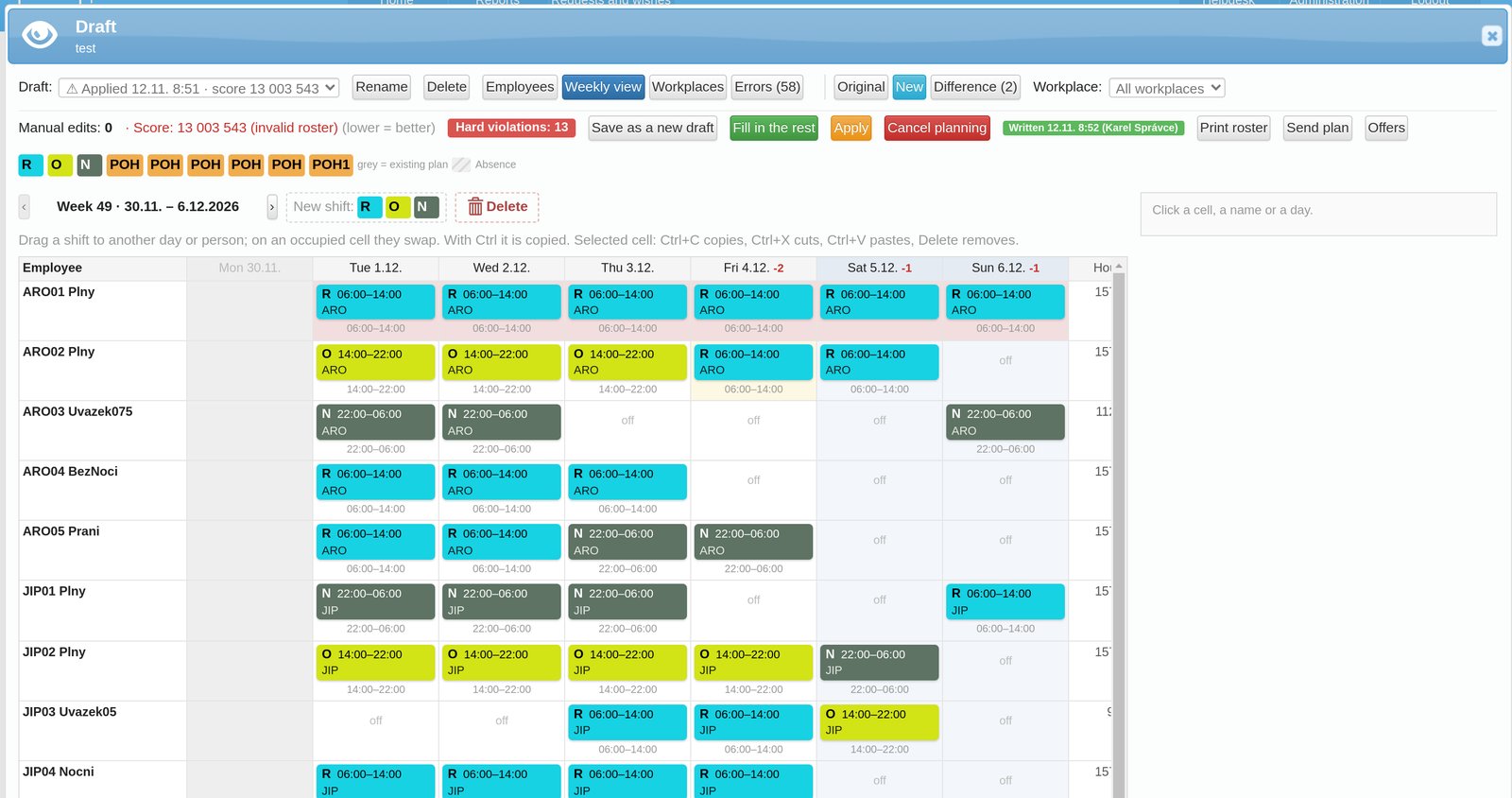
- Employees: rows are people, columns are days of the whole period. Grey is the existing plan, hatching is an absence.
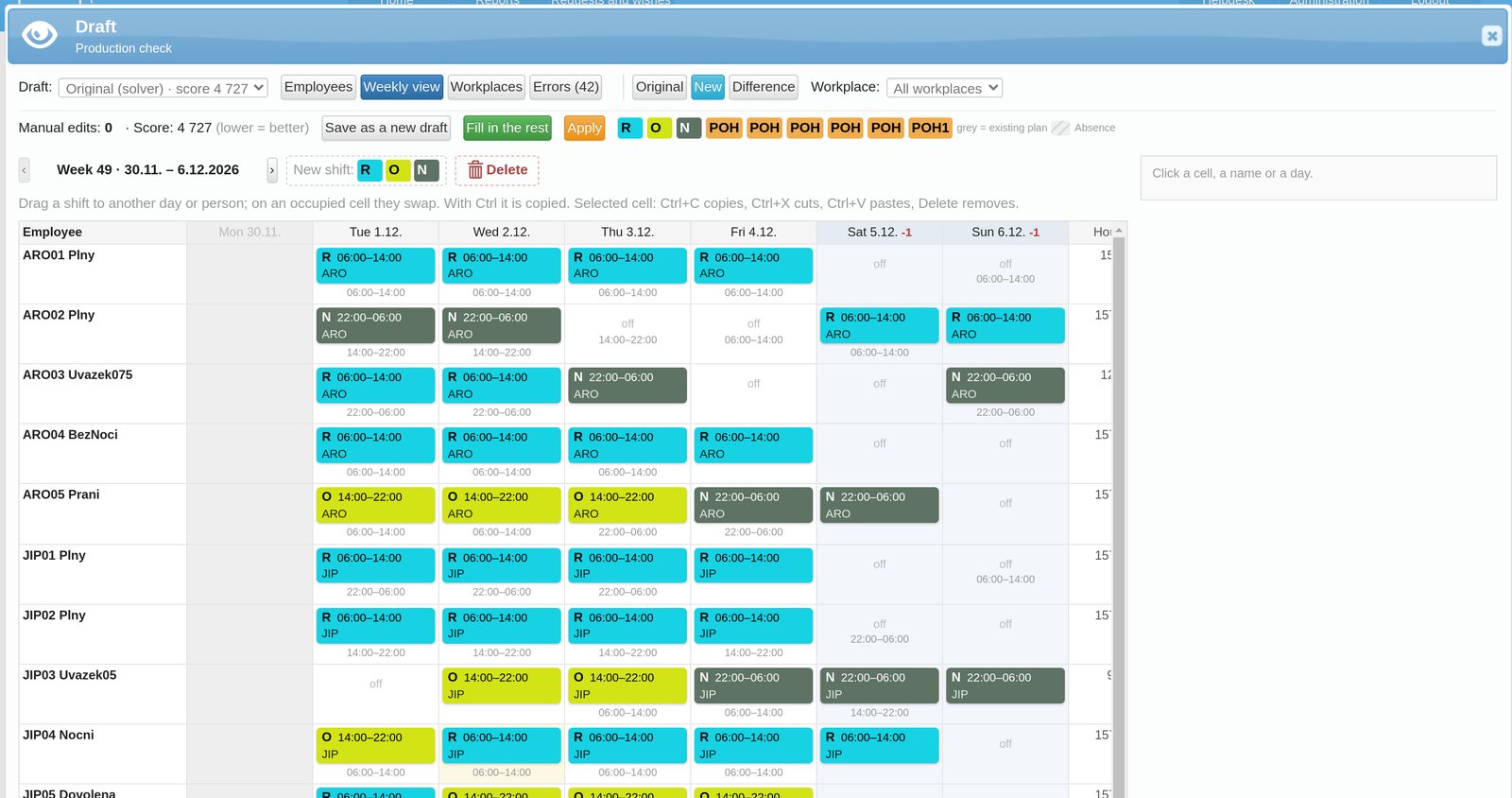
- Weekly view: one week per screen, hours and fund for each person. This is the best place to edit.
- Workplaces: staffing by workplace and shift against coverage.
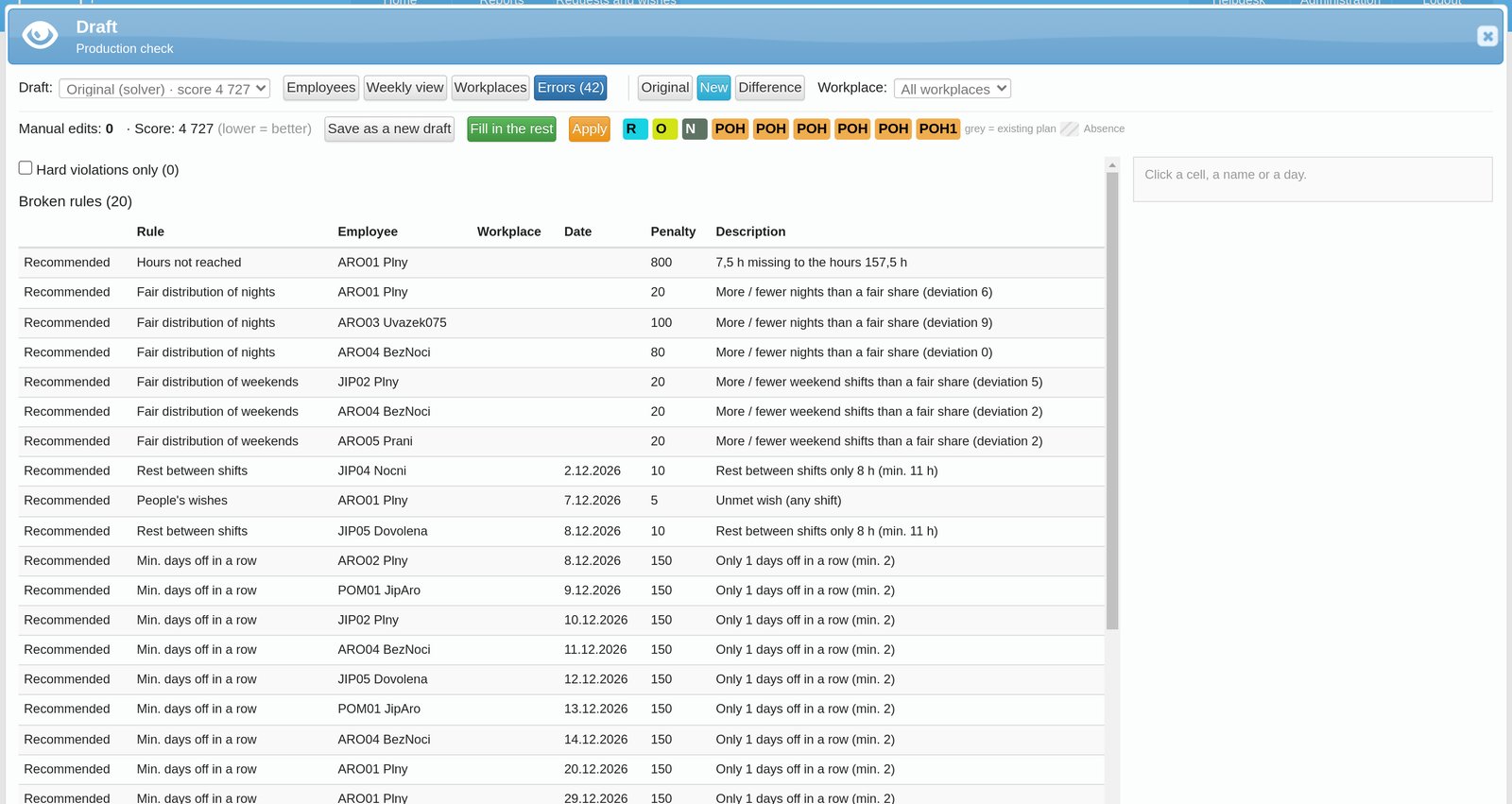
- Errors: broken rules with penalty and description, uncovered positions, summary. Filter “Hard violations only”.
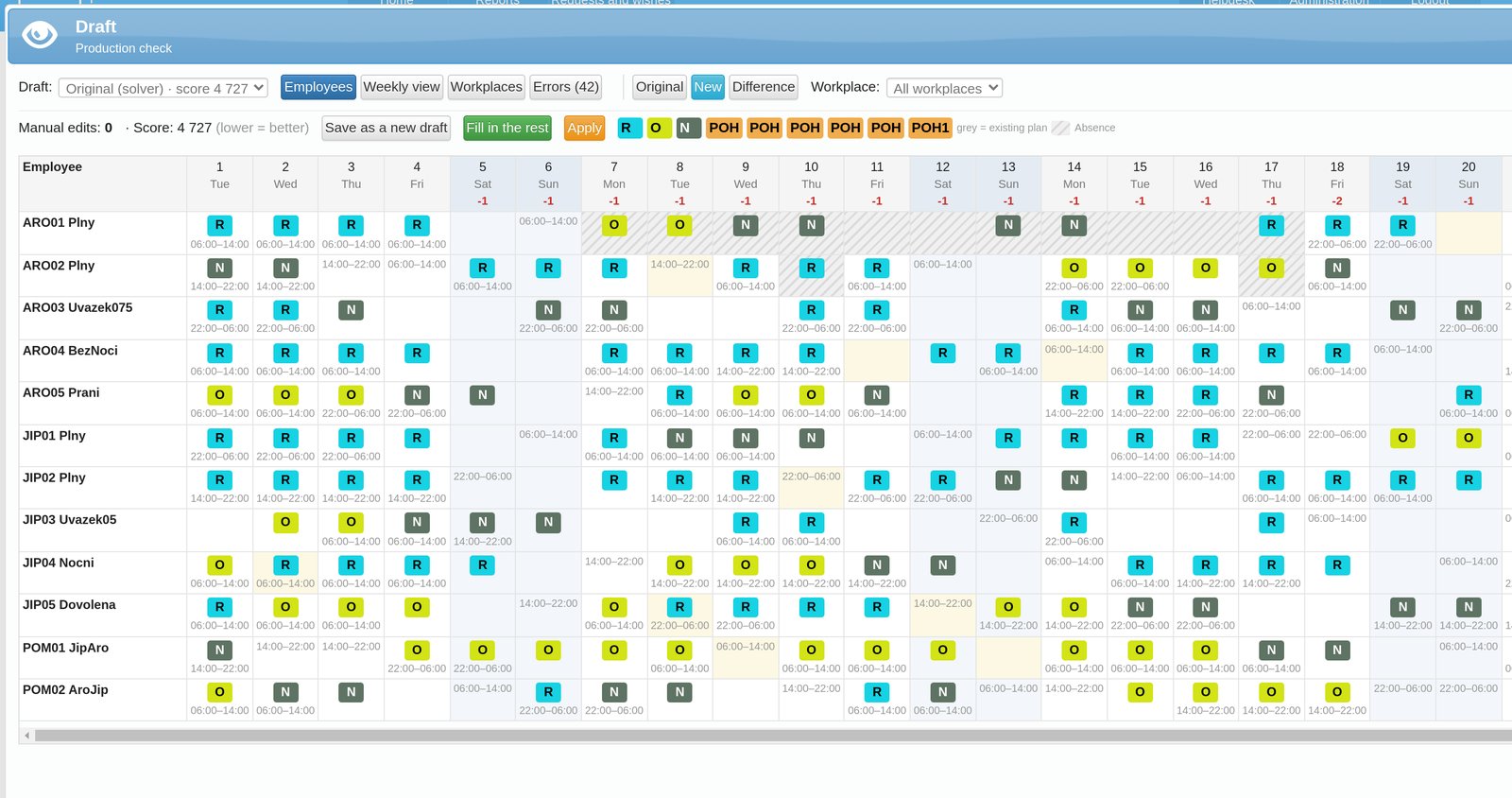
Modes Original / New / Difference
- Original: the draft as returned by the planner (read only).
- New: the current plan including your edits (editable).
- Difference: what changes against the written attendance plan. The panel “Changes against the draft” also shows dropouts (absence on a day with a shift).
Manual edits
In both the Employees view and the Weekly view:
- drag a shift to another day or another person, drag it onto the bin = delete;
- Ctrl+C / Ctrl+X / Ctrl+V copy and move, Delete deletes;
- click an empty cell and choose New shift (R / O / N…).
After each edit the score and violations are recalculated immediately (the solver only evaluates the draft, it does not search again). Save your edits with Save as a new draft. A new variant is created and the original remains. A draft that breaks hard rules can be saved only after confirmation. It is reported as an “invalid roster”.
7. Writing into attendance and cancelling
Apply
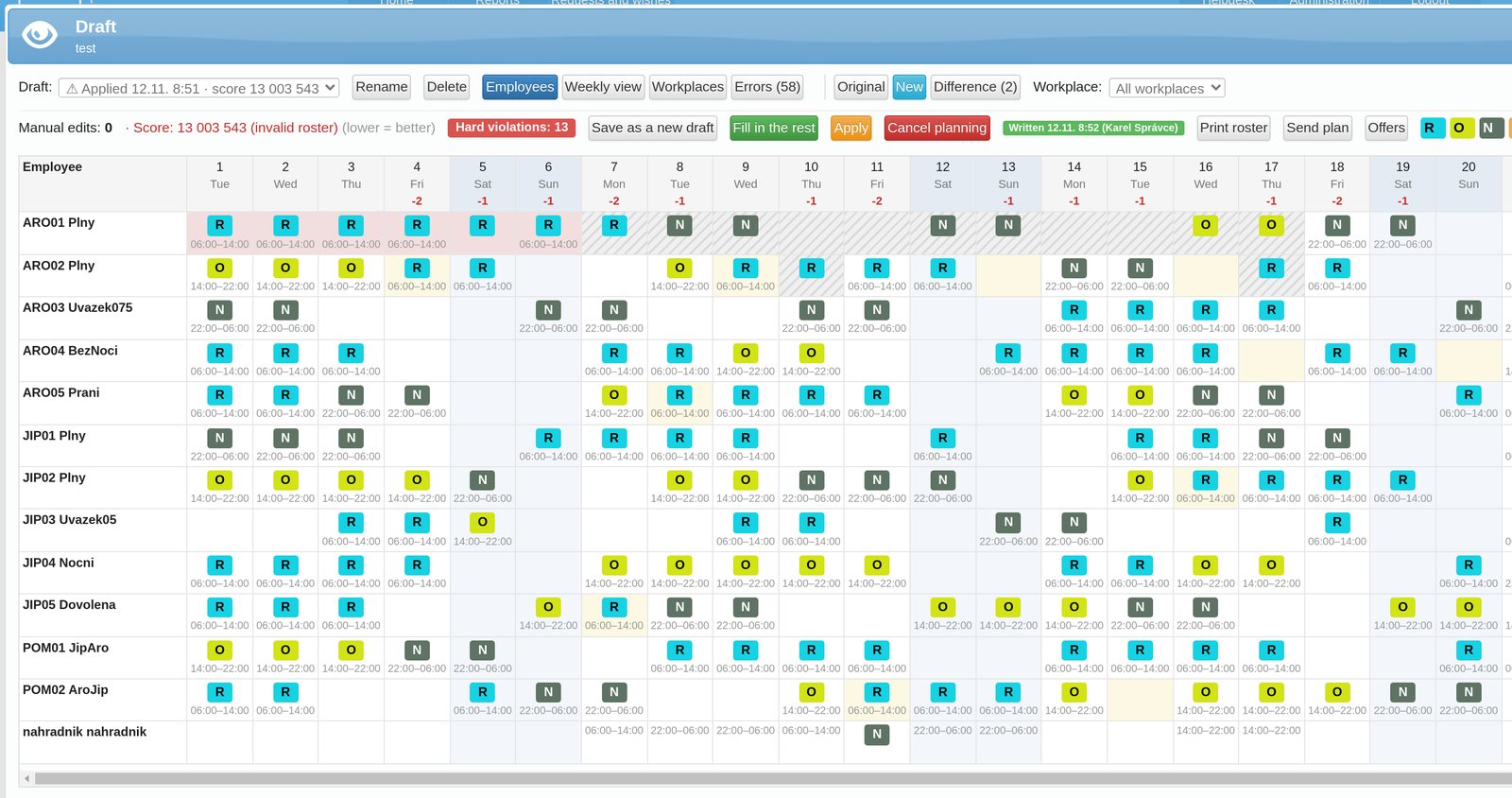
The Apply button writes the shifts from the draft into people’s attendance plan. Writing runs in the background with progress per person, then attendance is recalculated. When writing:
- a manual change in attendance takes priority: if someone changed a day in the plan manually in the meantime, the change stays;
- days with an absence and days before the attendance closing are not changed;
- if the rule set has employee consent switched on, last-minute changes are not written immediately but go to the employee for approval (chapter 11).
An applied run has the label Written in the list. In the draft (Planning → Show draft) there is a green Written label next to the buttons with the date and who wrote it.
Cancel planning
The Cancel planning button returns people’s attendance plan exactly to the state before Apply for the whole period of the run. Days edited manually in attendance stay. Nothing changes for people whose plan template changed in the meantime or who have a closing (the dialog lists them).
Print roster
Print roster prepares the workplace Shift roster for posting. It is based on the written plan including manual edits. Absences can be shown, but on a shared roster they tend to be sensitive data (sickness).
8. Sending the plan as PDF
After writing, use the Send plan button to e-mail people their written plan (including manual edits). In the dialog you set:
- To: everyone / selected (people without an e-mail are marked);
- E-mail content:
- Roster in the e-mail body,
- PDF with their own plan (the employee’s “Shift plan”),
- PDF of their workplace roster (“Shift roster” of the whole workplace),
- With absences (yes / no);
- Planner’s note: text at the beginning of the e-mail.
After Send, sending runs in the background. Building the PDFs can take up to a minute. Result: sent / skipped / error. The run shows when and by whom it was last sent, and to how many people. While the plan is being recalculated after writing, sending is not possible, so that people do not get an outdated plan.
For a longer-period plan, a PDF for the whole period (all months) is sent.
9. Changes on the fly
Fill in the rest
Edit what is needed in the draft manually (e.g. fix the weekend), save it and run Fill in the rest. Your edits stay fixed and the solver computes the rest.
Patch the gaps
When someone drops out after writing (sickness, leaving), the Patch the gaps button on the Planning page fills the missing shifts only with selected backup people. The written shifts of others stay unchanged. The missing fund is counted only for people with a written shift, not for helpers. For backup people you can set how many hours above the fund tolerance they may take.
Empty plan
Empty plan creates an empty draft without the planner. You click the shifts in manually, the rest can be filled in later. Useful for small teams or when you want to start from a fixed skeleton.
10. Plan for a longer period
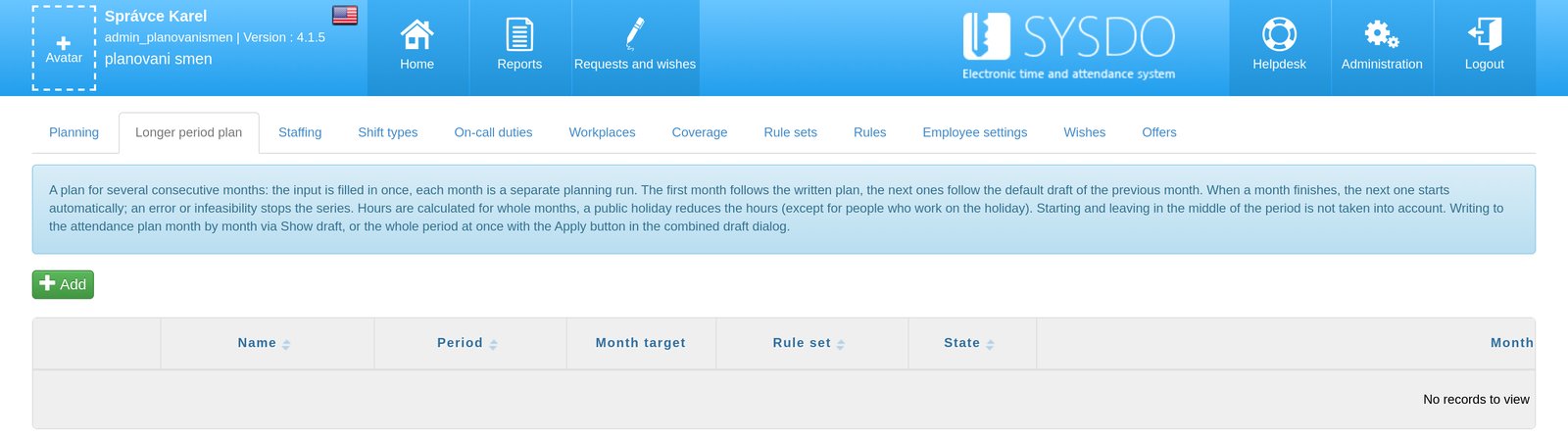
On the Longer period plan tab you plan several consecutive months with the input filled in once: From month, Number of months, Sada pravidel (Rule set), Workplace and Month target.
- Each month is a separate run. The first month continues from the written plan, the next ones from the default draft of the previous month.
- When a month is finished, the next one starts automatically. An error or infeasibility stops the series.
- The fund is counted for the whole period. The monthly target is either By calendar (according to the working days of the month) or Evenly. What a person works more or less in a month is carried over to the next month’s target.
- A public holiday reduces the fund. Starting or leaving in the middle of the period is taken into account: fund only for the days of employment.
- A month can be re-planned. The following, already computed months are marked as outdated and must be re-planned manually.
Combined draft of the whole period
When all months are computed, the Combine period button assembles the months into one draft across the whole period. The solver evaluates it as a whole, so you see the score and violations across month boundaries too (fund for the period, shift series over the turn of the month, weekends).
- Arrows switch between the months and the Summary page (overall score, violations by month, hours by person).
- Manual edits and variants work the same as for a month.
- Fill in a window…: select a range of days and people. The solver recalculates only that window, but the score is evaluated for the whole period.
- Apply writes the whole period at once (month by month in the background). Cancel planning reverts all written months.
- If a month is re-planned after combining, the combined draft is outdated. Combine the period again.
11. Employee consent to a change (Section 84 of the Labour Code)
The planner handles this with the Consent to a shift change feature in the rule set:
| Field | Meaning |
|---|---|
| Require employee consent | Switches the whole mechanism on. |
| Consent period (days) | Changes fewer days ahead go to the employee as an offer for approval. According to the Labour Code 14. |
| Time to answer (h) | How long the employee has to reply. Default value, can be changed at Apply. |
How it works
- Apply splits the changes: days beyond the period (today + consent period and later) are written directly. Closer changes are not written, and each affected person gets an offer = a package of their changes (day: now → new). The Apply dialog shows how many changes are written immediately and how many go for approval.
- The employee gets the e-mail “Shift plan change offer” with a table of changes and the difference in hours.
- The employee accepts or declines the whole package (when rejecting, they can give a reason):
- on the web on the Shift change offers page,
- via the link in the e-mail, without logging in,
- in the mobile app (coming soon).
- A reminder is sent halfway through the deadline.
- Accepted: the changes are written only for that person and they receive the new plan. Rejected or expired (no reply within the deadline): the original plan stays, a gap appears in the roster and the manager is notified.
- In the draft dialog (the Offers panel) the manager sees the status of each offer: Waiting, Accepted, Declined, Expired, Withdrawn. The manager can withdraw the offer or record a phone consent / rejection. A note on the phone call is mandatory, so that it is documented when and how the agreement was made.
- The manager fills the remaining gaps with the Patch remaining gaps button. The solver leaves rejected days free for that person; offers awaiting a reply stay reserved.
What the employee sees
In the Requests and wishes menu there is the Shift change offers page. The grid lists all their offers: when it arrived, reply deadline, status, difference in hours and how they replied. At the top you can see how many offers await a reply.
Clicking a row opens the detail: what changes (day: now → new), difference in hours and the buttons Accept change and Decline change.
Acceptance must be confirmed. The change is written into attendance immediately and the employee gets an e-mail with the new plan. When rejecting, the employee can give a reason; the manager sees it with the offer.
What the manager sees
Managers see offers in the draft dialog (the Offers panel) and in summary on the Offers tab in Shift planning. The grid has an extra Employee column; the offer detail has buttons for phone consent, rejection and withdrawal.
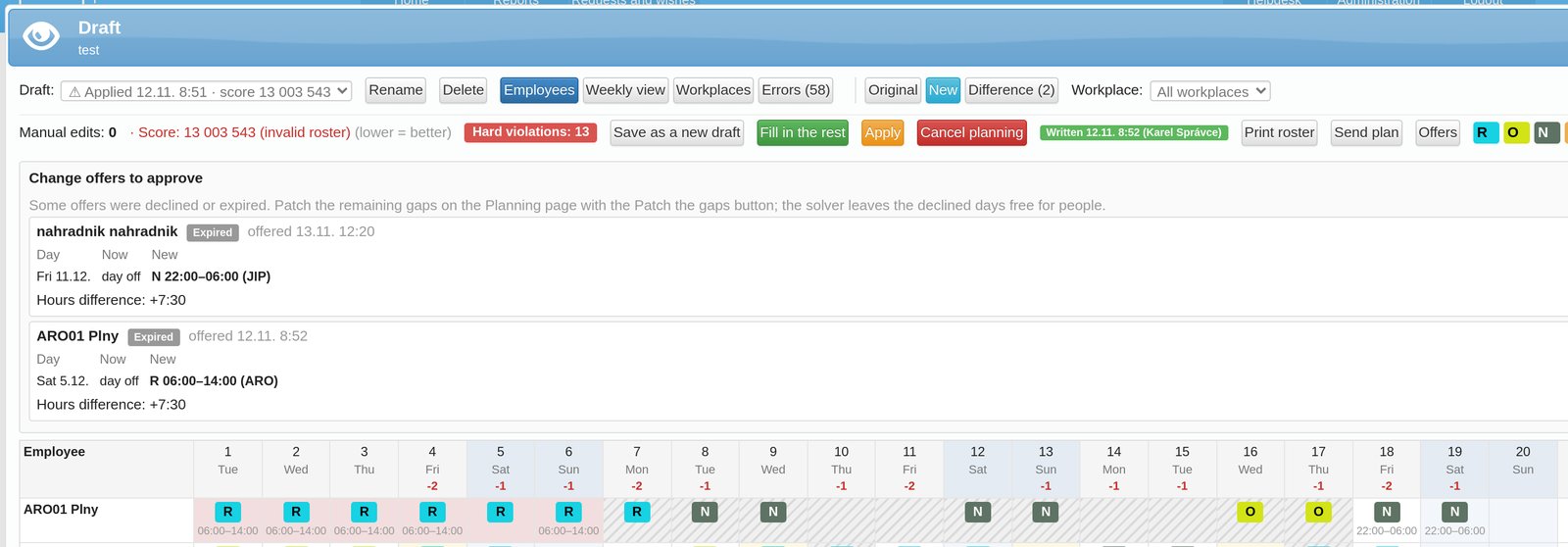
Every reply is stored with the time and channel (web, e-mail link, mobile, phone). The agreement with the employee is therefore traceable.
12. Staffing: who is at the workplace and when
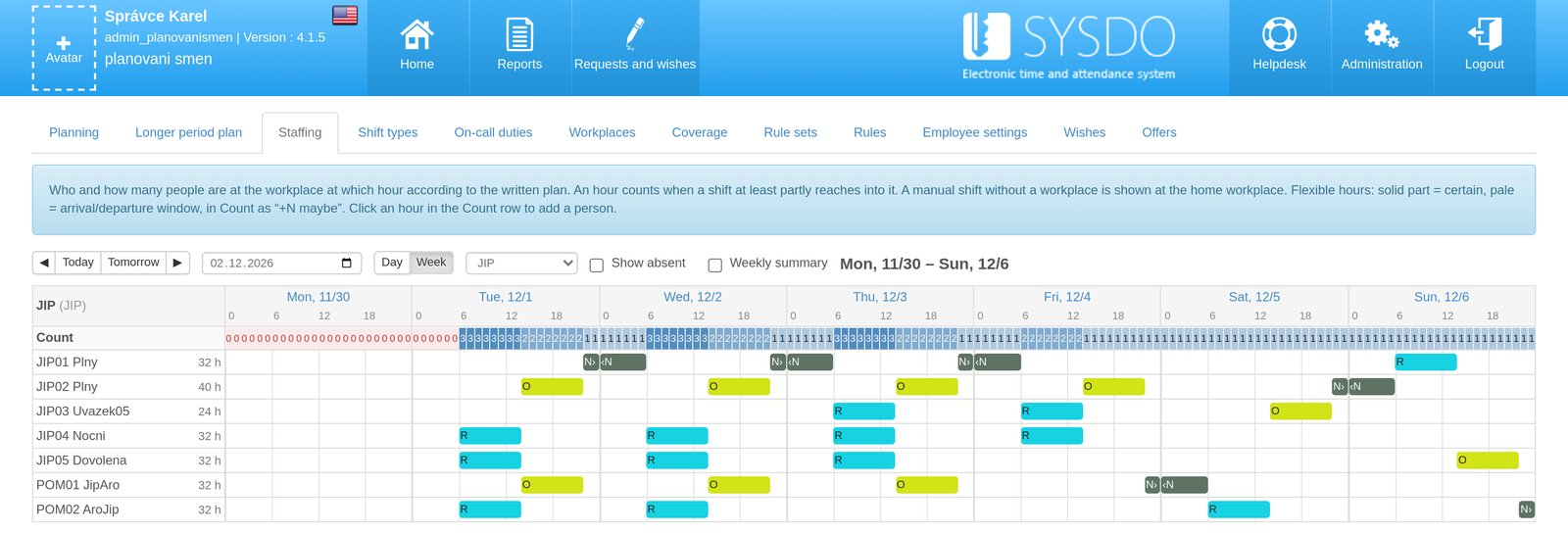
The Staffing tab shows the written plan (what is in attendance), not the solver’s draft. It answers questions like “Do I have enough nurses in the ICU tomorrow at 8:00?” or “Who is in the ICU at night?”. Everything in the attendance plan is counted: shifts from the planner, manually entered shifts and the manual work plan.
Controls
- Day / Week: one day by hour, or a week Monday – Sunday.
- Arrows ◀ ▶, Today, Tomorrow and a date picker. Workplace selector (empty = all, one below another).
- Show absent: also shows people on holiday, sick leave etc. and workplace people who have the day off (in grey).
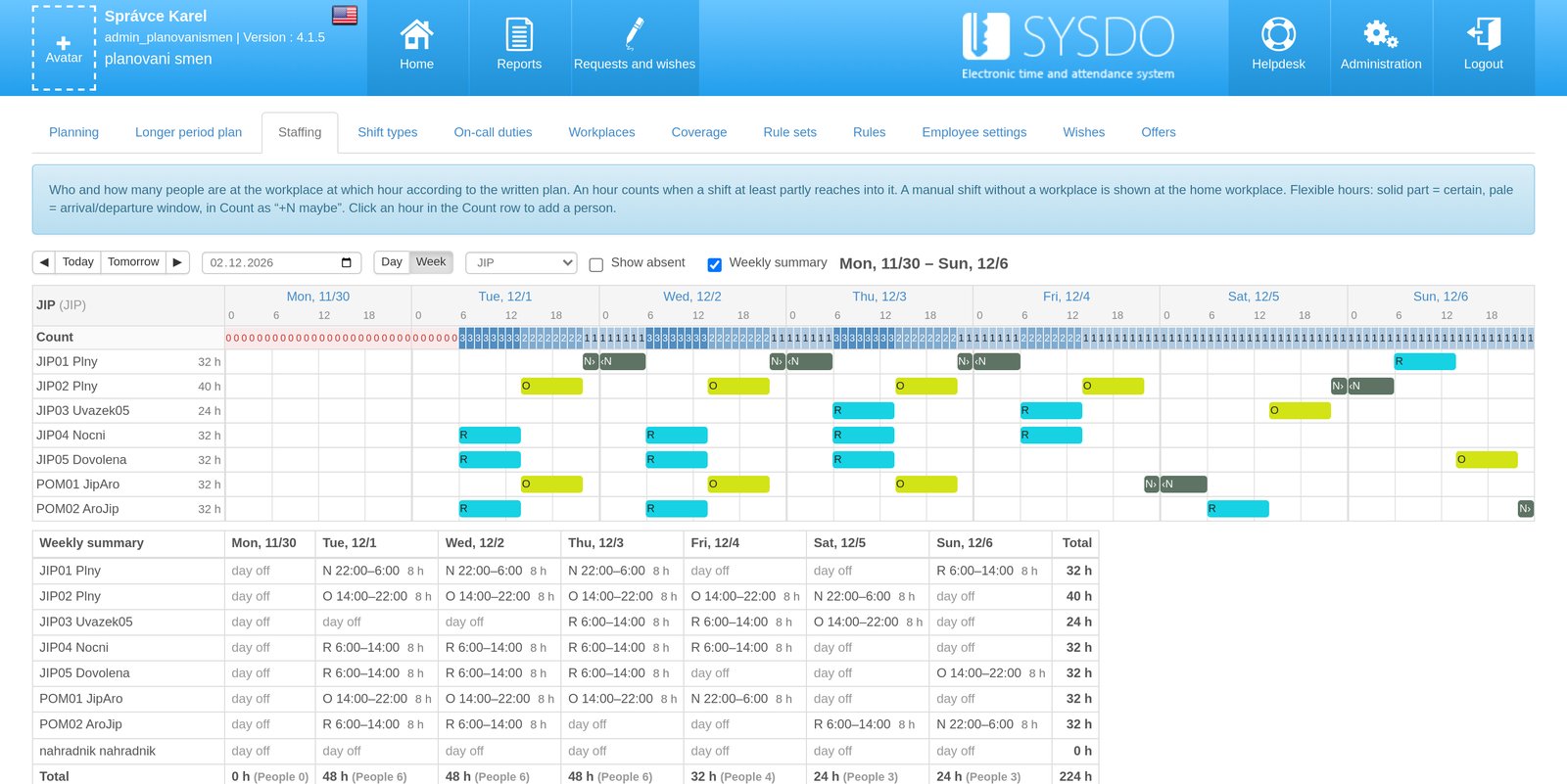
- Weekly summary: a table people × days of the week below the workplace (see below). The choice is remembered.
Day view
At the top is the Count row: how many people are at the workplace in each hour. An hour counts when a shift overlaps it at least partly. An hour with no people is highlighted in red. Below it is a timeline, one row = one person.
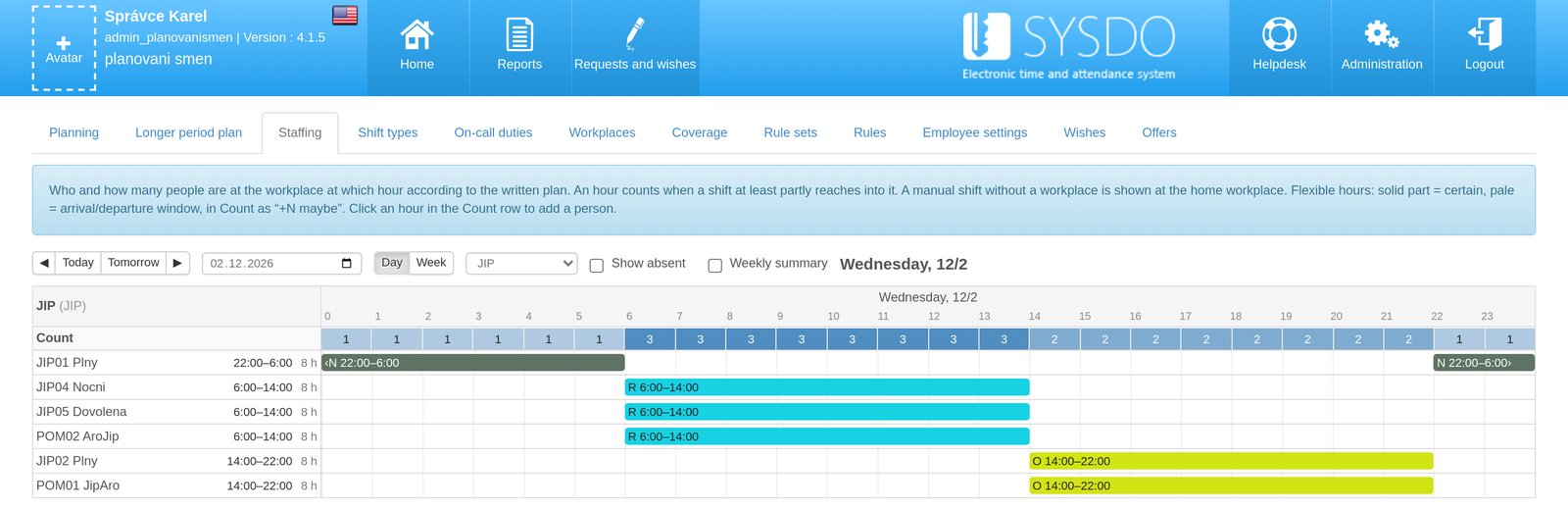
| What you see | Meaning |
|---|---|
| Coloured bar with an abbreviation (R, O, N) | Shift; colour and abbreviation by shift type. A night shift is split at midnight (‹N morning, N› evening). |
| Green bar, italics | Manual work plan from attendance (no shift type), the same green as in attendance. |
| Solid and pale part of a bar | Flexible working time: the solid part is the core time (the person is certainly there), the pale part is the arrival / departure window. |
| “3 +1” in the Count row | 3 people for sure, 1 maybe (in the flexible-time window). The tooltip lists the names. |
| Hatched bar | Absence (holiday, sickness…). Not included in the count. |
| Dashed bar “?” | A shift offered to the employee, awaiting their consent. Not counted until they accept it. |
| After the name | Start–end of the day’s shifts and hours at the workplace. Flexible time is an estimate, marked “~”. |
| “elsewhere: ARO R 6:00–14:00” | The person belongs here too, but works at another workplace that day. That is why they cannot be added here. |
Week view
Seven days side by side, each with a small 0–24 h timeline and a Count row by hour. The hours for the week are shown after the name. You can easily see who alternates nights, who is “elsewhere” all week and where people are missing.
Weekly summary
A table people × Mon–Sun: each cell shows the shift abbreviation and time with hours, an absence, “?” for an offer, otherwise “off” or “elsewhere”. The Total column adds up the person’s hours for the week, the last row the hours and number of people per day. Useful for a quick check of the fund and of even distribution.
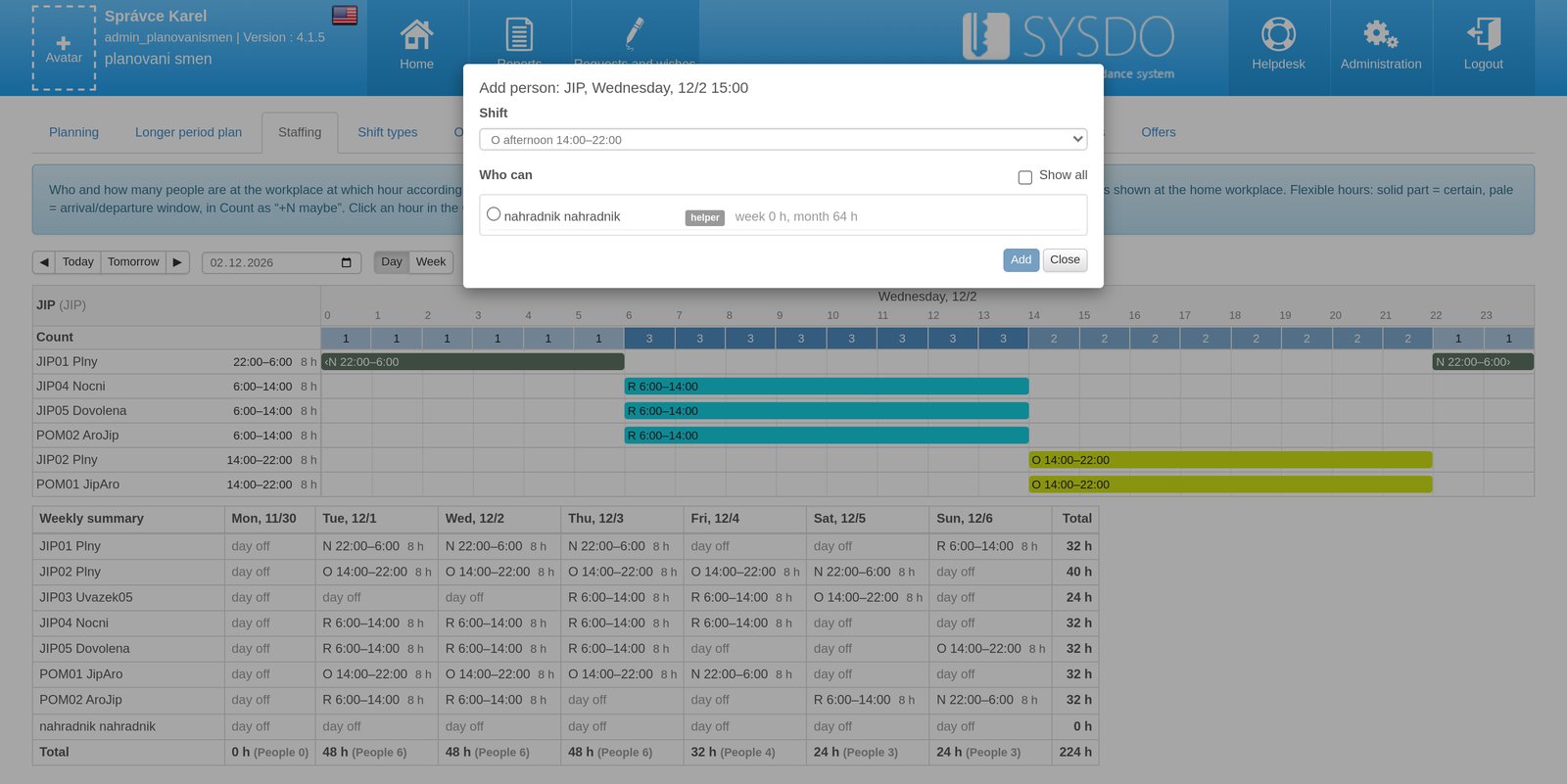
Adding a person for an hour
Clicking an hour in the Count row opens the Add person dialog:
- Shift: the shift types covering that hour are offered (e.g. Afternoon at 16:00; at 2:00 also the night shift from the previous day).
- Who can: the workplace’s people. Label home / helper, hours worked in the week and month, so you can see who has the fewest hours.
- Show all also shows those who cannot be added, with the reason:
- already has a shift (here or at another workplace),
- absent (holiday, sickness…),
- waiting for consent with another change (already has an offer pending consent),
- attendance is closed,
- would not get 11 h of rest: only a warning, the person can still be selected (Section 90 of the Labour Code – shortening only under the conditions of the law).
- Add.
What happens after Add
| Situation | Result |
|---|---|
| The day is further away than the consent period (or consent is switched off) | The shift is written into attendance immediately. The employee gets an e-mail about the plan change. |
| The day is within the consent period | Nothing is written. The employee gets an offer (Shift change offers, e-mail, mobile). In Staffing the shift is dashed with “?” until they reply. After acceptance it is written. |
| The plan for that day was not created in the planner (made in attendance), outside the period | The shift is assigned directly in attendance. It is also removed in attendance. |
| The plan was not created in the planner and the day is within the period | Adding is refused. Employee consent cannot be bypassed. |
Employee consent is required by law
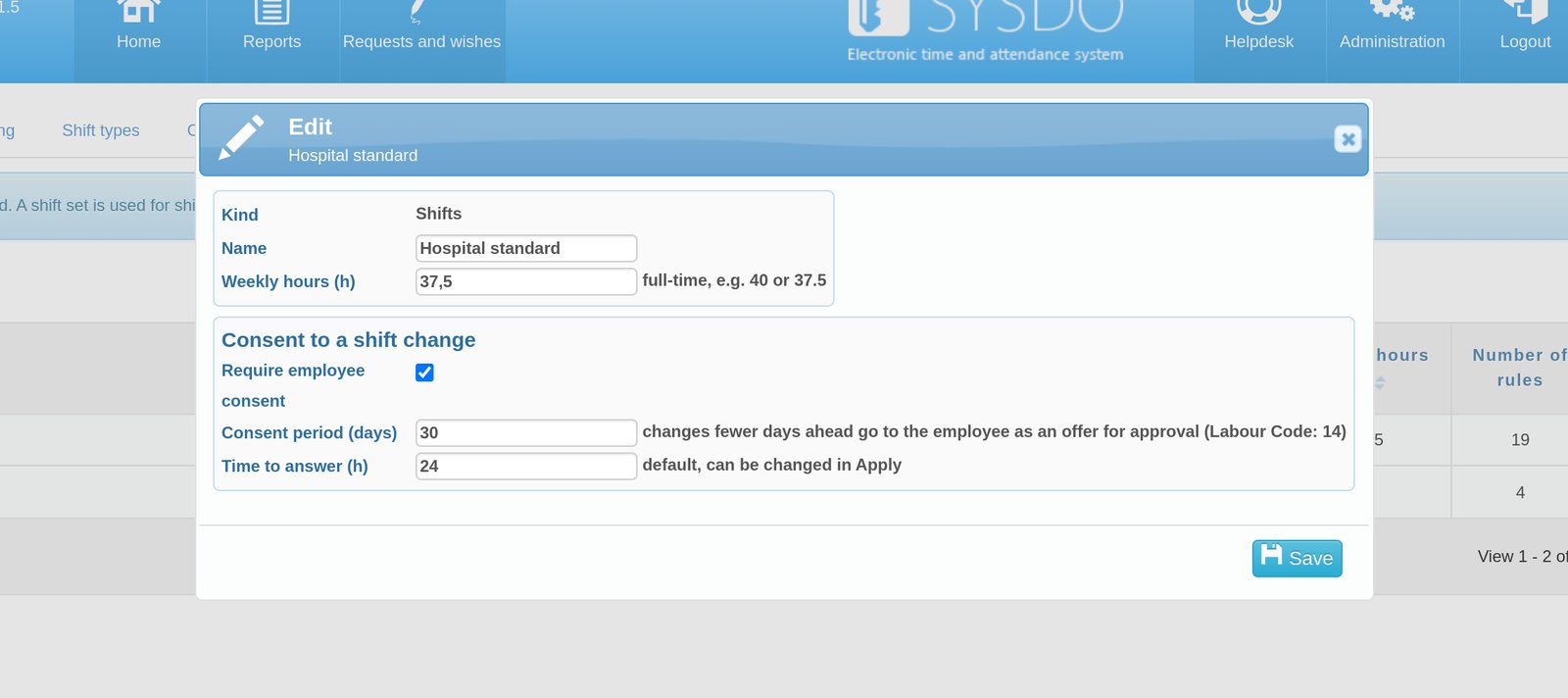
The behaviour is set in Rule sets → Edit → Consent to a shift change:
- Require employee consent: can be switched off. Then every addition is written immediately (the employer is responsible for the agreement).
- Consent period (days): number of days ahead for which consent is needed. The law = 14. It can be set higher (30 days in the picture, an internal hospital rule), lower only if a different period has been agreed with the employees.
- Time to answer (h): how long the employee has to reply (default 24 h).
13. On-call duties
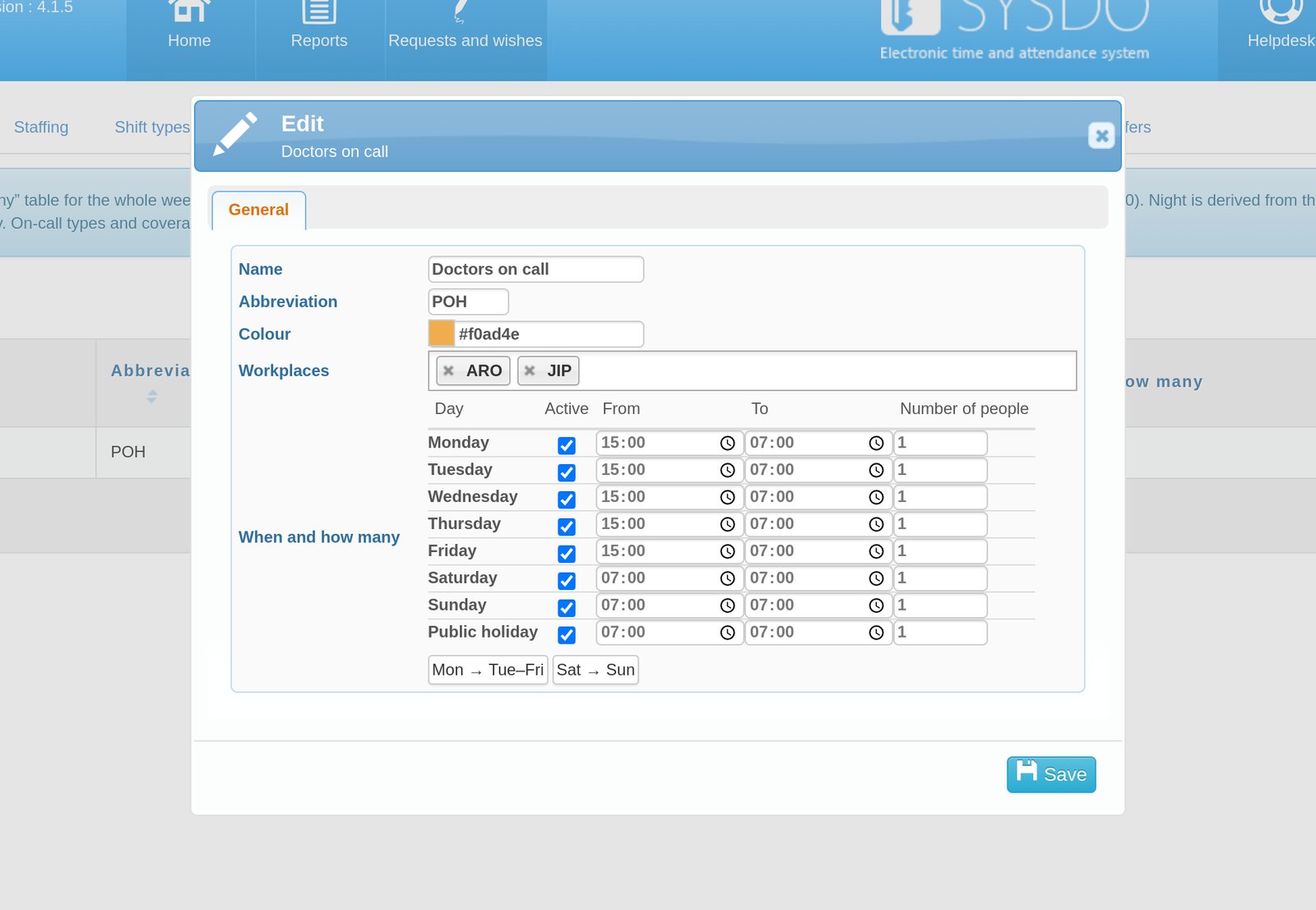
On-call duty is planned separately from shifts. One on-call duty = one “when and how many” table for the whole week and public holidays. The planner creates the on-call types and coverage from it by itself; nothing else needs to be created.
13.1 Creating an on-call duty
Tab On-call duties → Add. Fill in:
- Name, Abbreviation (e.g. POH) and Colour. The abbreviation is shown in the draft, in the PDF and in attendance.
- Workplaces: one or more. The number of people in the table applies to each selected workplace separately.
- The When and how many table: 8 rows (Mon–Sun and Public holiday), each with Active, Od (From), Do (To) and Number of people.
| Day | Active | From | To | Number of people |
|---|---|---|---|---|
| Mon–Fri | yes | 15:00 | 07:00 | 1 |
| Sat, Sun | yes | 07:00 | 07:00 | 1 |
| Public holiday | yes | 07:00 | 07:00 | 1 |
- An end earlier than the start means the on-call duty ends the next day (15:00–07:00). The same time = 24 h (07:00–07:00).
- The buttons Mon → Tue–Fri and Sat → Sun copy the row, so filling in Monday and Saturday is enough.
- Night is not entered; the planner recognises it from the time.
- A public holiday takes priority over the weekday. If the Public holiday row is not active, no on-call duty is planned on holidays.
- Leave a day without on-call duty inactive.
For different numbers of people at different workplaces, create a second on-call duty.
13.2 Coverage from on-call duty
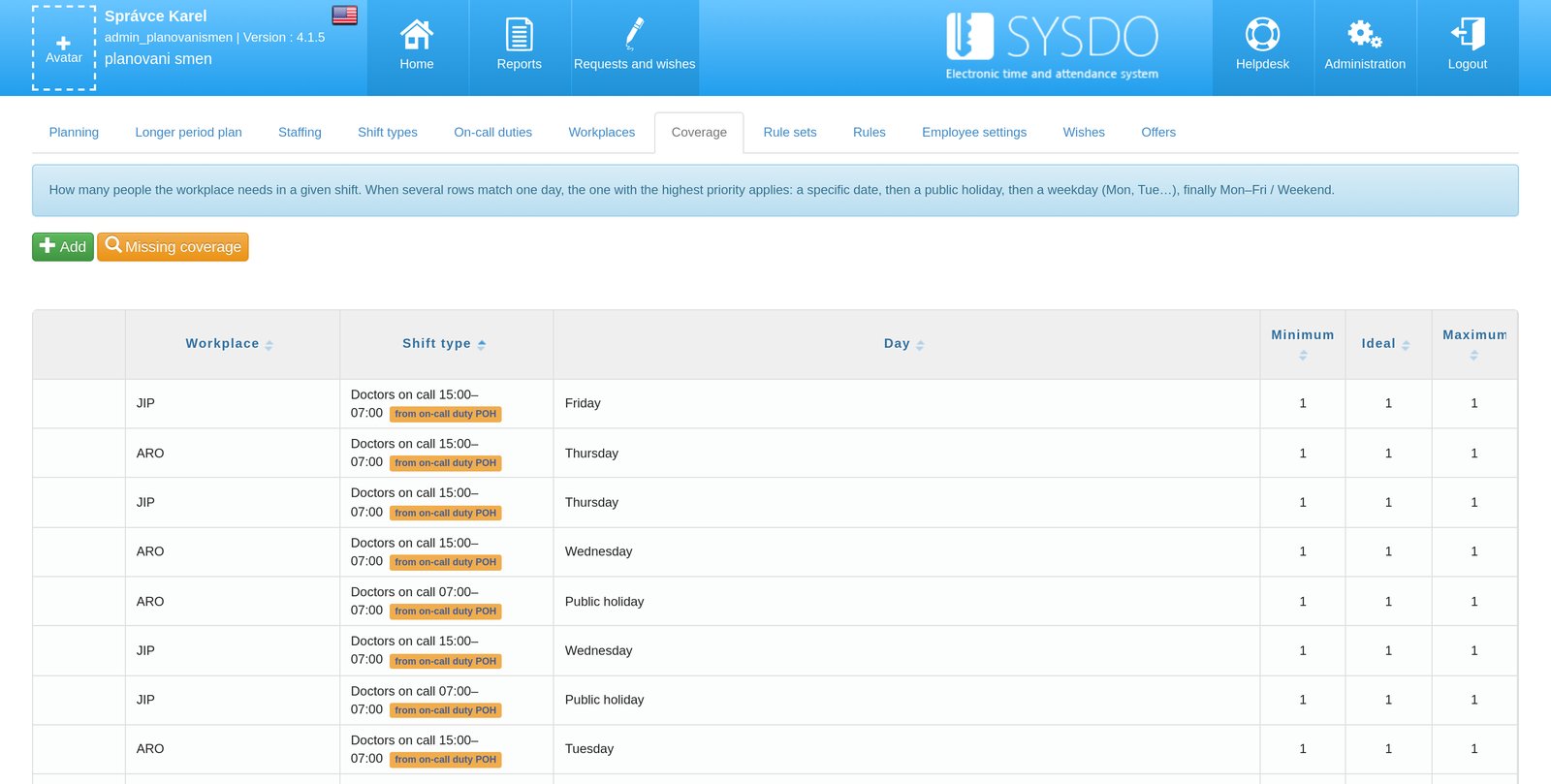
After saving, on-call rows labelled from on-call duty POH appear on the Coverage tab. They are read only and are changed on the On-call duties tab. Add an exception for a specific day (e.g. two people on 31 Dec) manually in Coverage as a row with a specific date. The date takes priority, so the exception applies only to that day.
13.3 Wishes for on-call duty
In a wish you select the on-call duty itself (not its time), on the web and in the mobile app. “Want” / “Don’t want” applies to the on-call duty on that day, whether it is a weekday or a weekend. On a day when the on-call duty is not active, the wish is not counted.
In Employee settings → Allowed shift types: if a person has no on-call type selected, they may do all on-call duties. Otherwise only the selected ones.
13.4 Planning
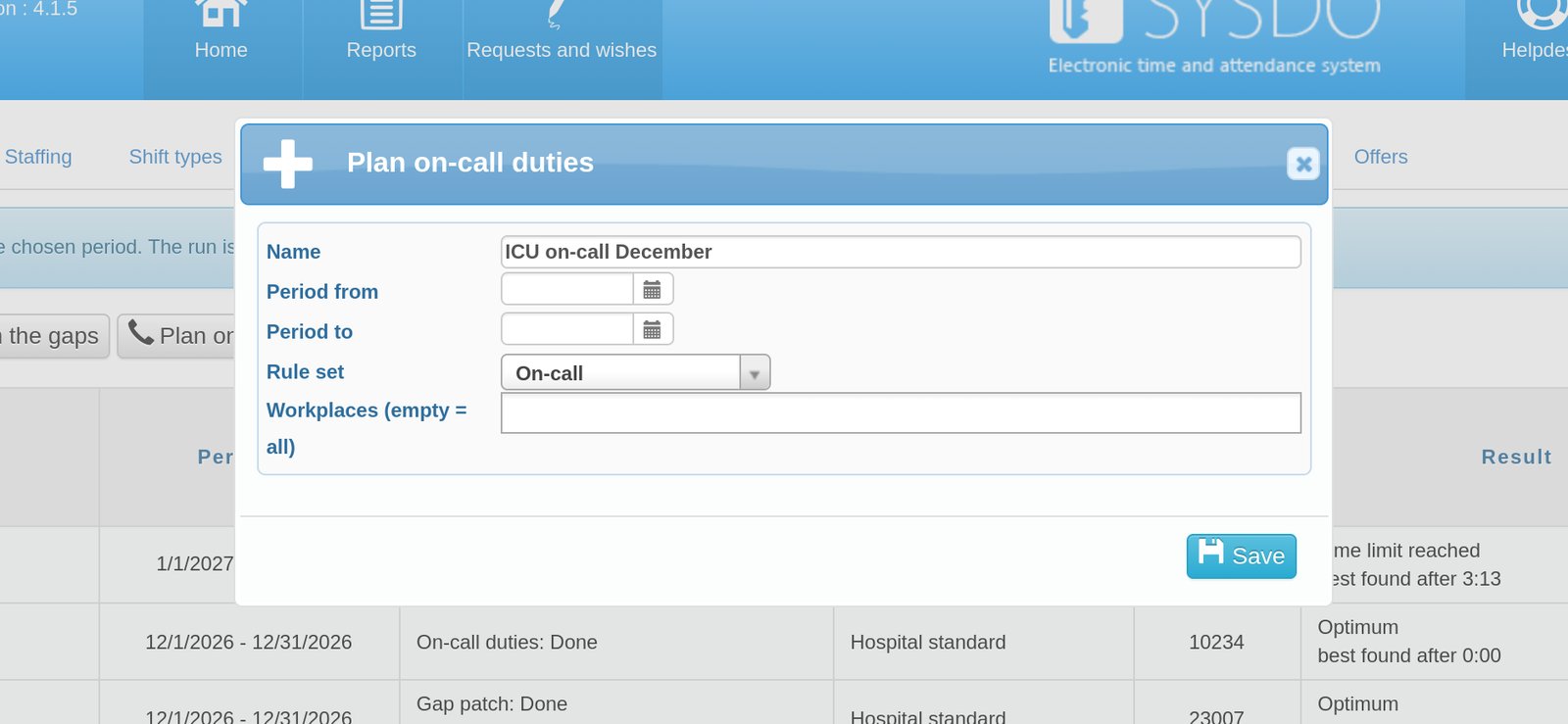
On the Planning tab, start Plan on-call duties. The planner distributes on-call duties among the workplace’s people according to coverage, wishes and rules. A day with an absence is skipped. The shift roster is not touched.
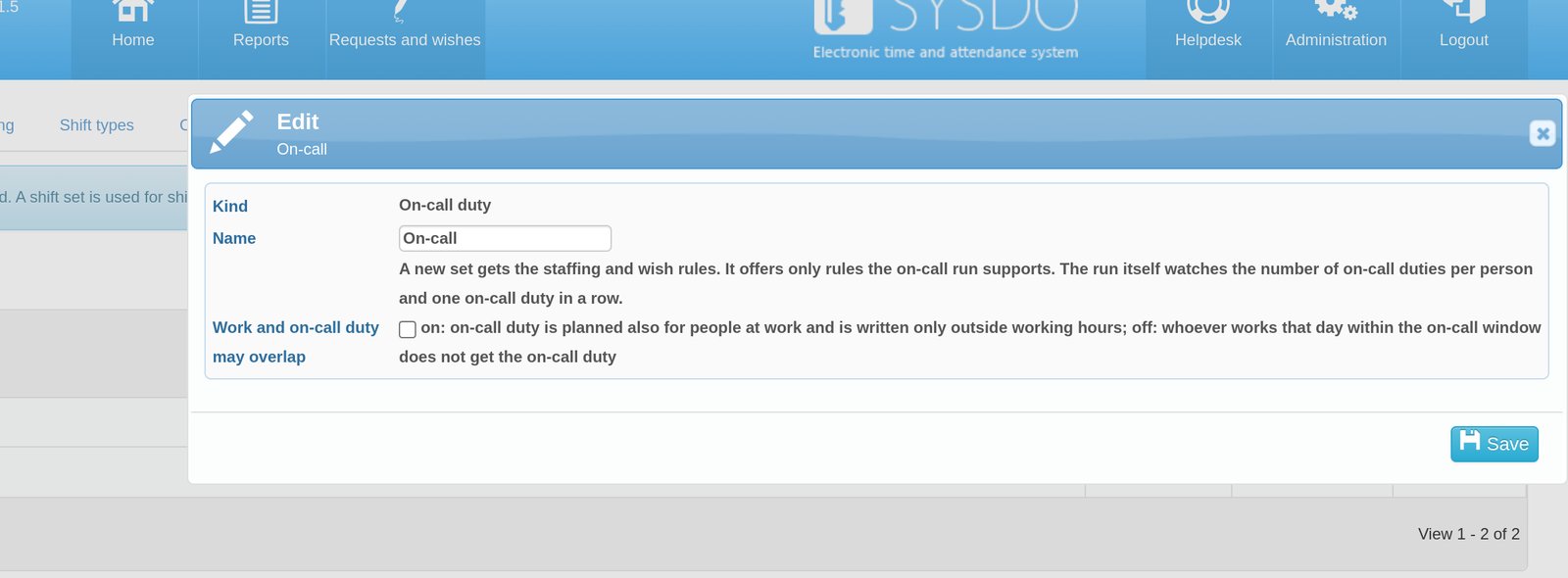
An on-call run offers only sets of the On-call duty kind. If there is none, create one on the Rule sets tab (Kind = On-call duty). A new set immediately gets the rules Minimum, Ideal and Maximum coverage and Wishes. Only rules that make sense for on-call duty can be added (coverage, fairness of nights and weekends, free weekends, max. number of a given type and of nights, wishes, forbidden sequences). Neither the weekly fund nor consent to a change is entered for on-call duty.
The rule set has the option Work and on-call duty may overlap:
- on: on-call duty is planned even for a person who works that day. Only the time outside working hours is written into attendance;
- off: whoever works that day within the on-call window does not get on-call duty.
An on-call draft is reviewed, edited, written and sent the same way as a shift draft (chapters 6–8).
14. Rules and the Czech Labour Code
The planner checks only what is set in the rule set. For compliance with the Czech Labour Code we recommend having these rules in the set. The values correspond to the general provisions of the Code. Verify deviations (collective agreement, healthcare, continuous operations, working-time account) for your own operation.
| Law | Requirement | Rule in the planner |
|---|---|---|
| Section 90 Uninterrupted rest between shifts | min. 11 h within 24 h (can be shortened to 8 h under the conditions of the law) | Rest between shifts 660 min, hard or soft with a high weight |
| Section 92 Uninterrupted weekly rest | min. 35 h per week (24 h under the conditions of the law) | Uninterrupted weekly rest 2100 min, hard |
| Section 83 Shift length | a shift must not exceed 12 h | Checked through the length of shift types (templates) |
| Sections 79, 83 Set weekly working time and fund | 40 h per week (37.5 h in continuous / three-shift operations), uneven distribution averaged over the balancing period | Weekly fund in the set + working-time ratio; Fund not used up and Fund exceeded |
| Section 94 Night work | on average max. 8 h in 24 h; night work is a health burden | Max. consecutive nights, Max. nights per period, Time off after nights, Forbidden sequences (Night → Morning) |
| Section 93 Overtime | max. 8 h per week on average and 150 h of ordered overtime per year | Fund exceeded with tolerance, Max. worked in a rolling window |
| Section 84 Schedule and its change | in writing 2 weeks in advance (1 week for an account), shorter only by agreement | Consent to a shift change + sending the plan as PDF (chapters 8 and 11) |
| Section 91 Public holidays | a public holiday is a day of rest, the fund is reduced by it | Public holidays from the company calendar: fund reduction, own coverage |
15. Tips and FAQ
The roster cannot be built
- Are there enough people for the minimum coverage? Compare people × fund against the shifts needed.
- Do the hard rules contradict each other (e.g. max. consecutive shifts + high minimum + few people)?
- Do people have too narrow allowed shift types or workplaces?
- Try temporarily changing a hard rule to soft with a high weight. A plan is created and in Errors you will see where it gets stuck.
The draft is wrong in one thing
Increase the weight of the relevant rule. Or edit the draft manually, save it and use Fill in the rest.
Fairness
Switch on Fair distribution of nights and weekends and Free weekends. Use the same rule set for the team.
Speed
Plan by month and only the workplaces you need. For a longer horizon use the Longer period plan. Plan several workplaces with shared people in one run. Better plan unshared workplaces separately, because large runs (over 40–50 people) are slower.
Recommended monthly rhythm
- Wish deadline (e.g. the 20th of the previous month).
- Planning run, review, edits.
- Apply and Send plan as PDF at least 14 days before the start of the month.
- During the month: dropouts are handled by Patch the gaps, last-minute changes go through employee consent.