
In the SYSDO system, it is possible to record employees’ arrivals and departures using a mobile application and QR codes placed in various locations, such as different buildings or facilities. The feature is activated in Administration → Company → Application → Functionfor the selected company. Once activated, a new item Points appears in the administration menu.
Use in the SYSDO Mobile Application
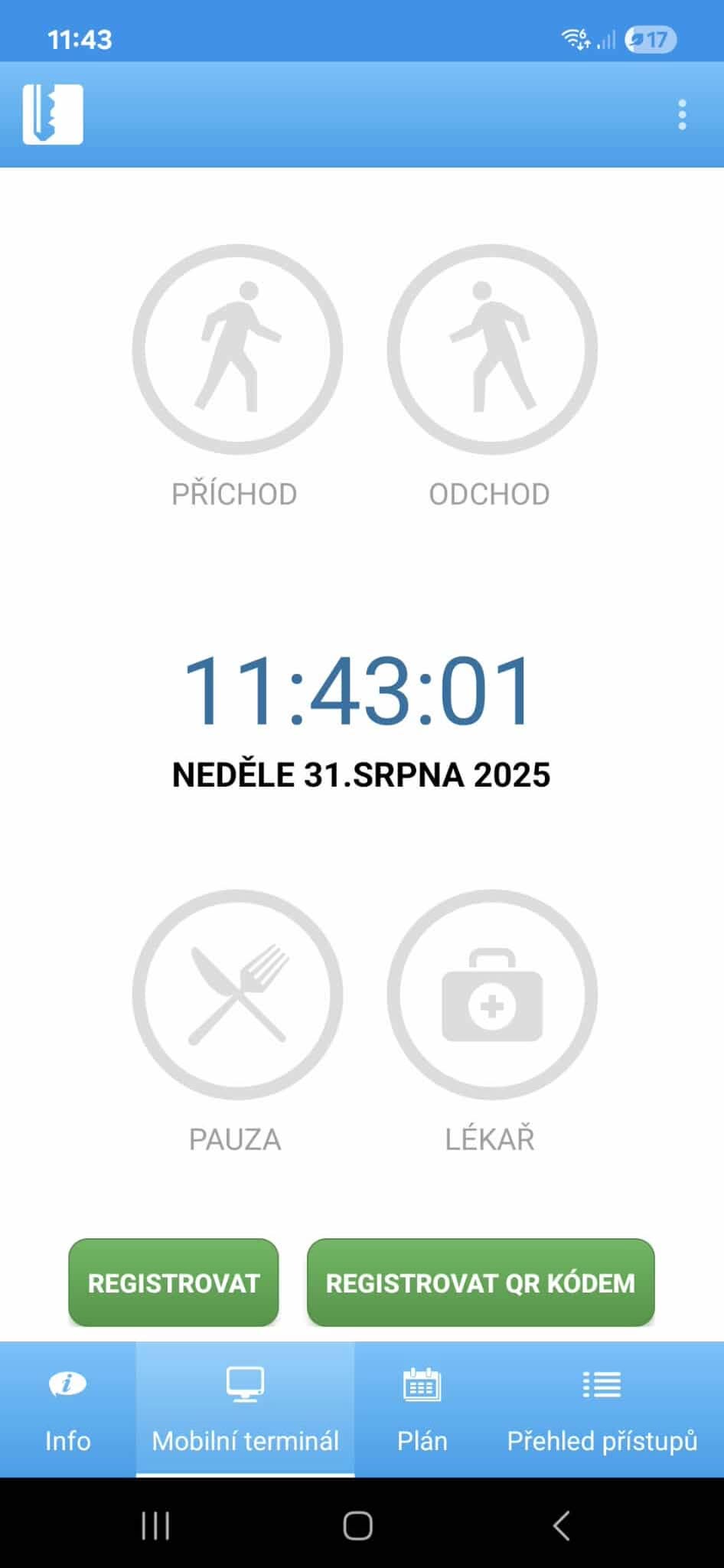
Next to the Register button in the mobile terminal, there is a Register via QR Code button. Using this option, you can scan a QR code, and the system will automatically assign the activity that is configured for that specific QR code.
Step-by-step procedure
The employee opens the mobile application and scans the QR code at the corresponding Point (e.g., Building A).
The system records the time and location of the entry and, if applicable, evaluates the activity according to the configured access type.
All records are synchronized with the server and are available in the attendance overviews.
Configuration in the SYSDO System
Readers
- Add a new reader of the Mobile Terminal type in the Readers section.
ChatGPT řekl:
The newly added reader will appear in the Readers overview.
Access types (without activity)
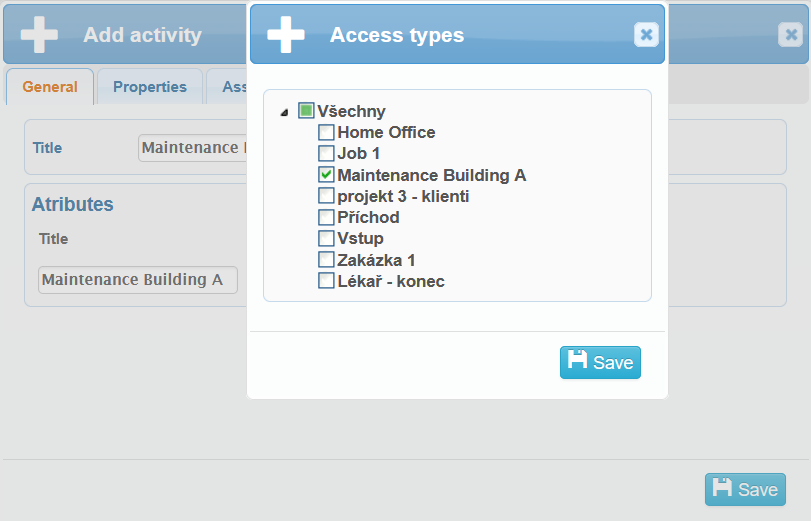
- Create a new Access Type, for example Maintenance Building A.
- First, create it without adding an activity, because the required activity (e.g., Maintenance Building A) has not been created yet.
Activities
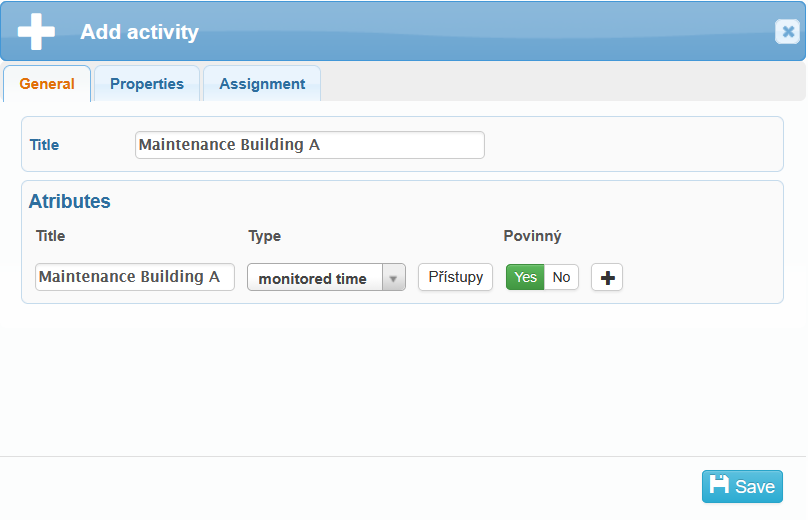
- Add a new Activity, e.g. Maintenance Building A, and set the Attribute Name (e.g. Maintenance Building A) and the type Monitored Time.
- Link this attribute to the new Access Type using the corresponding icon.

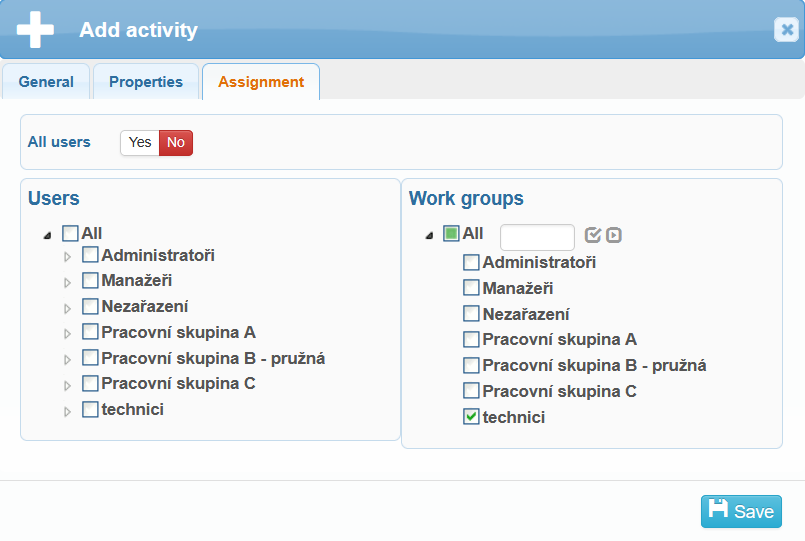
- Assign the activity to the appropriate Work Group, e.g. Technici.
Edit Access types
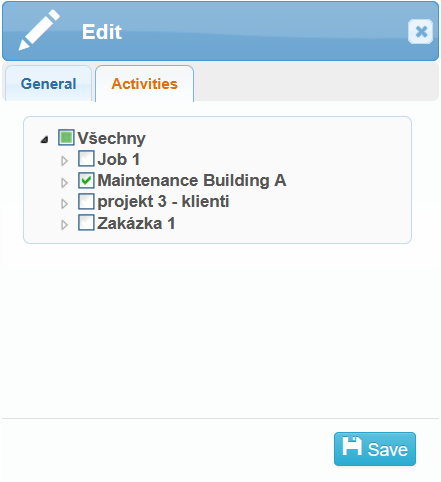
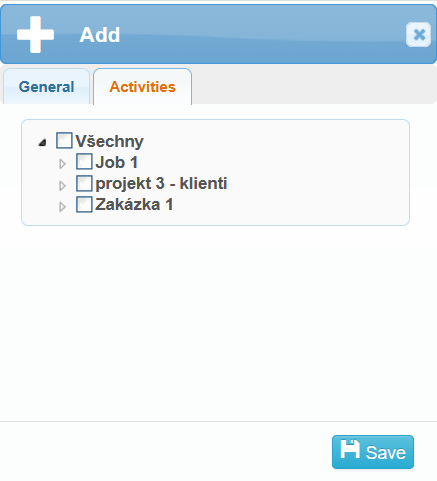
- Then edit the new Access Type and add the Activity you have just created.
Points
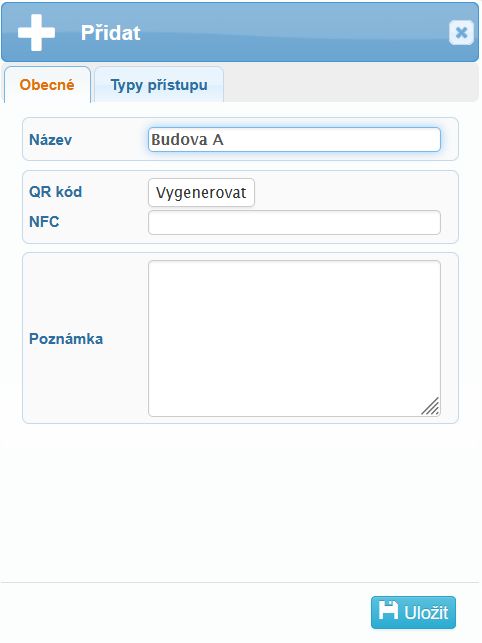
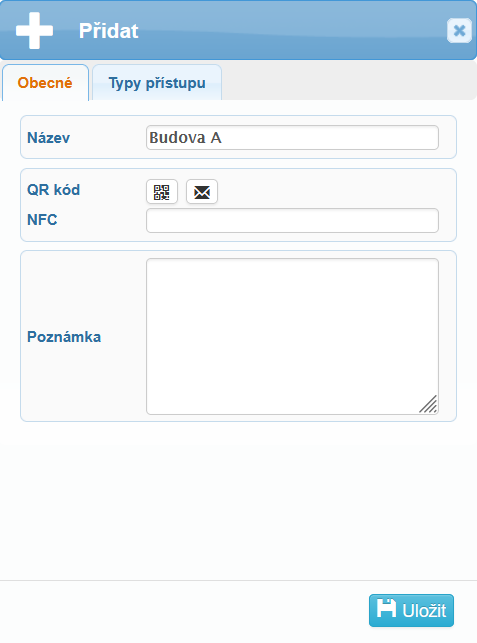
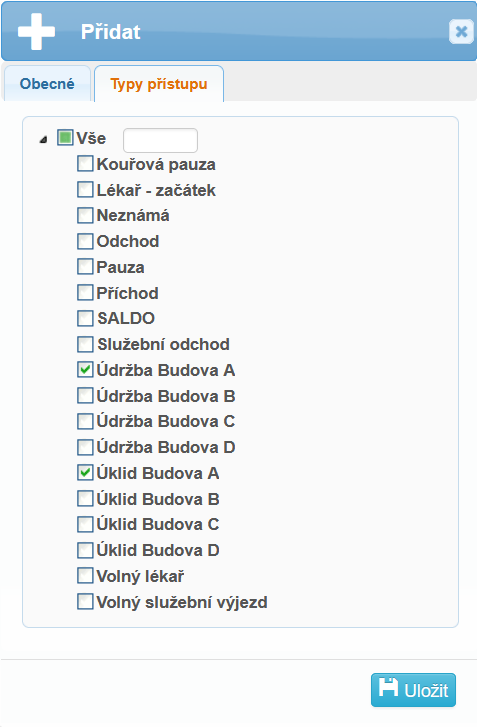
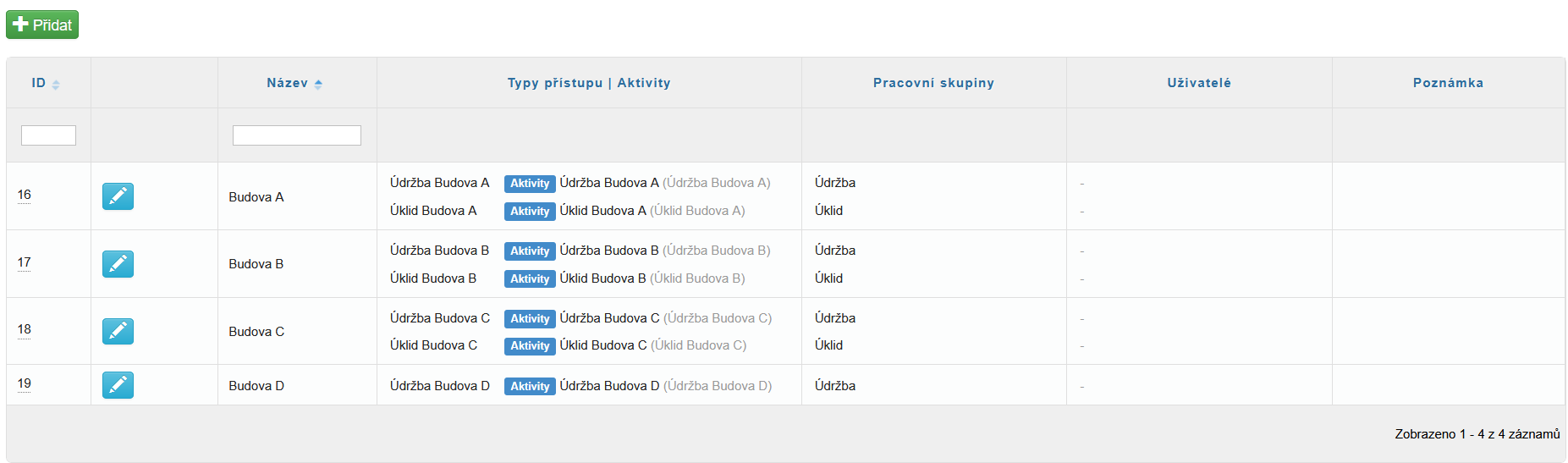
- Create a new Point (e.g., Budova A) and assign the appropriate Access type that include the Activity with the corresponding function.
Generate the QR code, which you can then print, save as a PDF file, or send to your email.